Complete Guide to Registering and Trading with Alpari Broker


Alpari is a familiar name to many Iranian traders; a long-established broker whose variety of trading accounts and services such as PAMM accounts have played a role in making it well known. If you plan to trade with this broker, registration is only the beginning. Below, we go over the process of creating an account and verifying your identity, and then move on to deposits and withdrawals and the steps needed to start trading.
Are There Any Restrictions for Iranians Trading with Alpari?
Alpari broker began operating in 1998 and serves more than two million clients worldwide. For Iranian users, this broker is considered a suitable option because it has not imposed any official or direct restrictions on Iranian traders.
Another advantage of Alpari for Iranians is its support for the Persian language, which covers the website and the customer support department, and even allows deposits and withdrawals in Rial. In addition, Islamic (swap-free) accounts are available to Iranian Muslim users to avoid paying overnight interest. However, there are some indirect restrictions; for example, during periods of extreme market volatility, restrictions may be applied to withdrawals, but this is a general issue and not specific to Iranians.
Overall, trading with Alpari is not only unrestricted for Iranians but also comes with special features such as deposit bonuses and trading contests that can increase profitability.
Logging In and How to Sign Up with Alpari Broker

To access the Alpari broker website, first go to the main address alpari.com and change the language, or go directly to the Persian version of the site https://alpariforexfa.org/fa/. For Iranian users, accessing the main site sometimes requires changing IP or using VPN due to filtering or internet issues, and by changing the language you will be redirected to the Persian version.
The Alpari website has a Persian version, which you can access by clicking the language option.
The registration process is very simple and takes only a few minutes. First, click the «Open Account» or "Open Account" button.
The registration form appears, where you first need to select your country, then enter your email and password on the new page.
After entering the verification code, you will be taken to a new page asking you to set a 5-digit security code. This code adds an extra layer of security for managing funds.
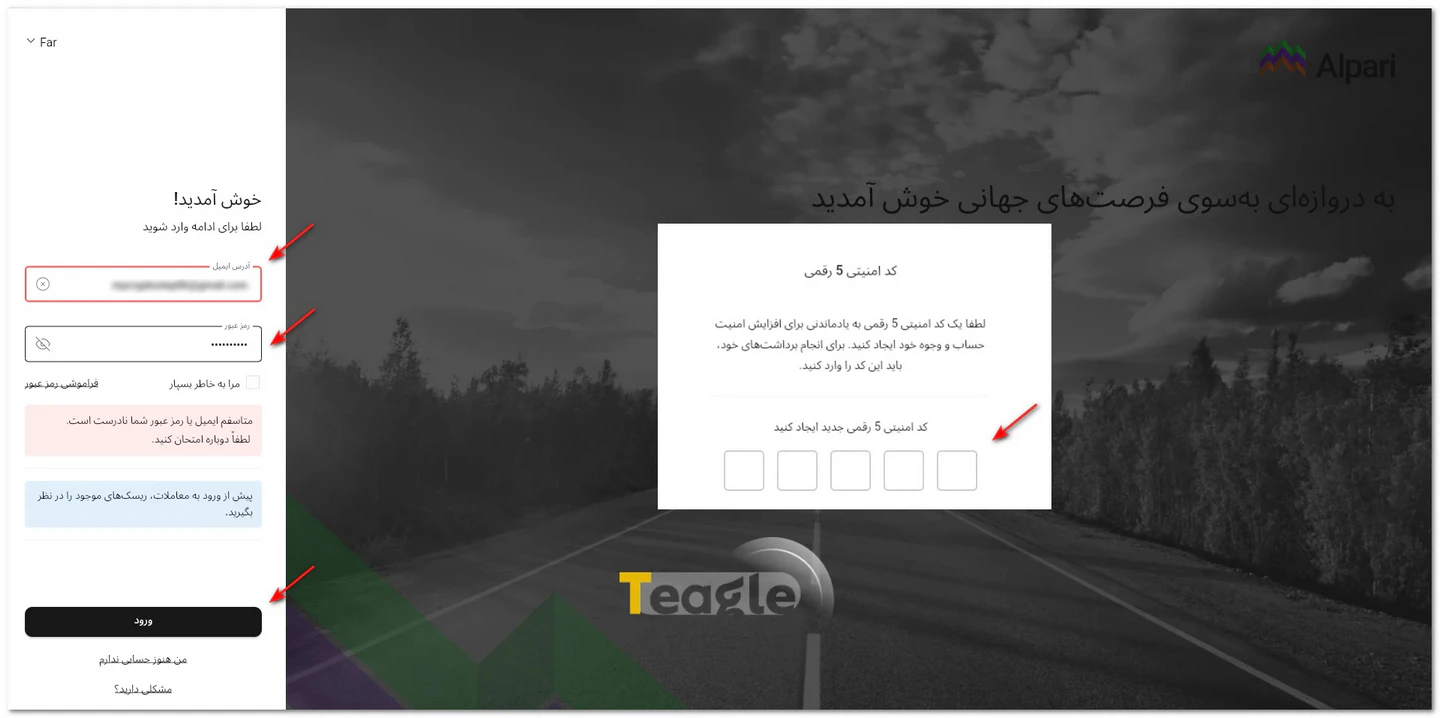
After that, tick the box to accept the information, terms and conditions, and select the newsletter option if you would like to receive it.
After confirmation, you enter the identity verification process, which you can postpone to another time if you wish, but it is recommended to complete verification immediately after registering, because all processes at Alpari broker depend on your account's identity being verified.
Documents required to register with Alpari
No specific documents are needed for initial registration with Alpari; personal information is enough. However, to fully activate your account and make withdrawals, you must provide identification documents. These include a driver's license, national ID card, birth certificate and passport, which must be clear color scans. Also, to prove your address, a water or electricity bill or a bank statement showing your name and address is required.
Identity verification at Alpari
Identity verification at Alpari is a simple but essential process that ensures account security. After registering, log in to your personal cabinet and go to the "Verification" section. Upload identification documents such as your passport or national ID card. To prove your address, a utility bill or bank statement is sufficient. Alpari usually reviews documents within 1-2 business days and emails the result.
For Iranian users, this process is carried out by an intermediary called SumSub . You upload image files of your identification documents on this website, and the intermediary site will verify your identity.
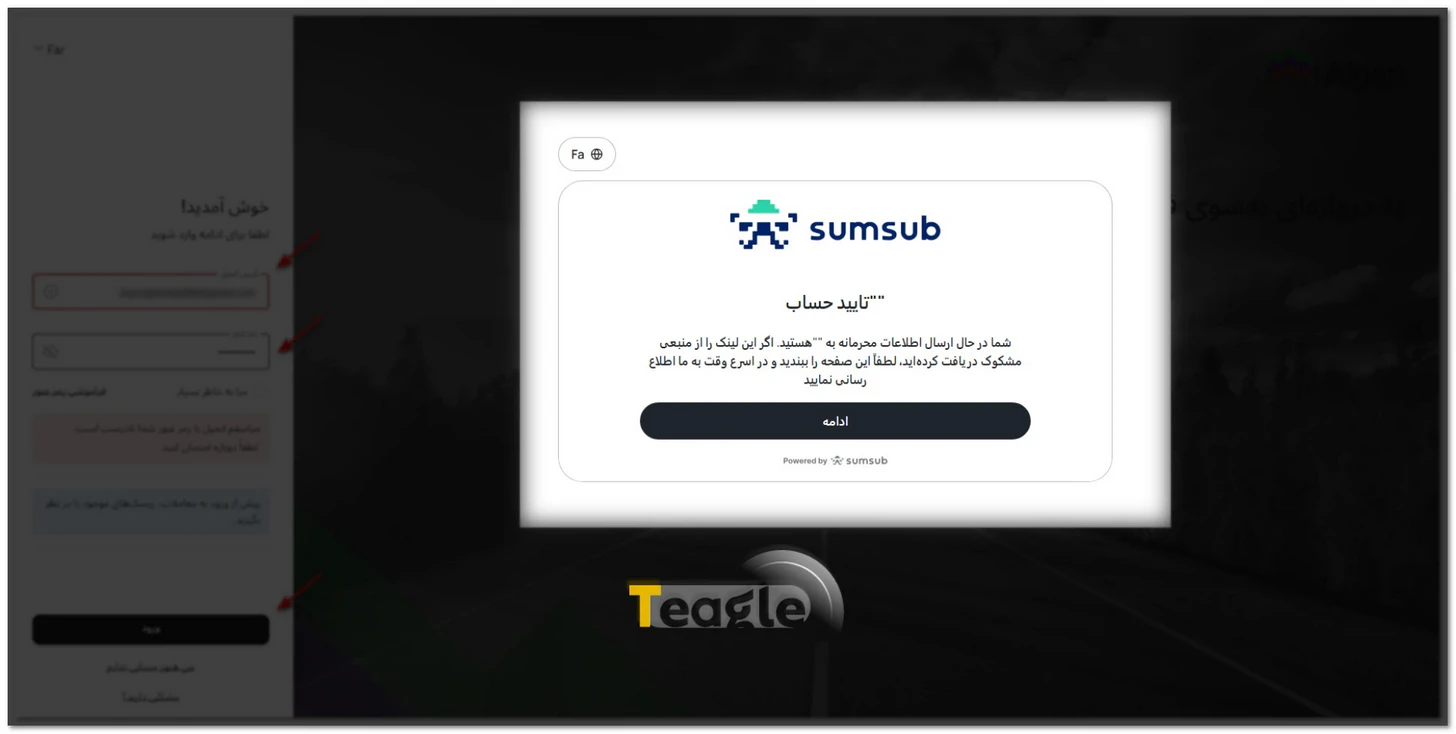
Opening an Account and Logging In to the Alpari Personal Area
After signing up and completing the verification process, log in to your Alpari personal cabinet and click "Let's start". In the menu that opens, choose the account type:
- Nano (for beginners, with a minimum of $1),
- Standard, ECN
- or Pro ECN.
You can read the account details on the «Review of Alpari broker account types» page.
After choosing the account type, you are taken to a new page where you can select the base currency (such as USD or EUR) and set your MetaTrader password. After this, the account is activated immediately and you can log in to MetaTrader.
At the end of this step, read the terms and conditions and the risk disclosure statement and, if you agree, tick the relevant box. You can then log in to the Alpari personal cabinet with your email and password; this is the area for managing accounts, depositing and withdrawing, viewing your trading history and changing account settings.
Before choosing a trading account, check its conditions, including the minimum deposit, spread, leverage and whether swap-free conditions are available. Higher leverage can magnify a trade's profit and loss equally, so it is best to choose it according to the level of risk you are willing to accept.
How to open a swap-free account at Alpari?
After completing the verification process, you are asked by default whether or not you want a swap-free (Islamic) account.
Note that you can change this option at any time under Profile / General settings. Click on your profile and go to your profile's general settings. In the Trading section, you can change the Swaps option to Swap-free. Support will then review your request and, if you are Muslim, remove the swap. You can submit a request once every 24 hours, and it carries no extra cost.
How to change leverage at Alpari broker
To change leverage, log in to your personal cabinet, click on your profile and go to the Accounts page.
Select the account you want, then in the settings section choose the new leverage and confirm. The leverage change takes effect immediately.
Ways to Fund and Deposit to Your Alpari Account
Alpari offers a variety of deposit methods, and for Iranians it has also provided TopChange as an intermediary exchange for Rial deposits, which is fast and commission-free. E-wallets such as WebMoney and Perfect Money, as well as cryptocurrency transfers like Bitcoin, are also available. After completing identity verification, log in to your Alpari personal cabinet and follow the steps below:
- In the «Funds» section, select the «Deposit» option.
- Specify the local currency and the deposit amount.
- Check the minimum deposit amount and any possible fees.
- Select your preferred payment method and enter the requested information. Then complete the transaction on the payment service provider's page. Once the transaction is confirmed, the funds will be credited to your trading account.
If the TC Pay option is displayed among your account's deposit methods, you can select it for local payment. Before final confirmation, check the payable amount and the exchange rate on the same page.
Points to keep in mind when depositing:
-
Third-party payments are not accepted. The sender's name must match the name registered with Alpari .
-
Any transaction sent in a currency different from your account currency will be automatically converted at the exchange rate of Alpari .
-
If the deposit is successful, the amount will be credited to your account within a short time. If Alpari or the payment provider cannot verify your information, a delay may occur.
-
Alpari's exchange rates are updated daily.
-
Deposit fees will be deducted from the deposited amount, and the details can be viewed in your cabinet.
-
Processing time varies for each payment method. See the details in MyAlpari .
|
Payment method |
Deposit |
Withdrawal |
||||
|
Fee |
Minimum |
Processing time |
Fee |
Maximum |
Processing time |
|
|
TopChange |
From 3$ to 0.1 percent |
10$ |
Instant |
0 |
|
Up to 1 business day |
|
E-wallet |
From 3$ to 0.1 percent |
30$ |
Instant |
Variable |
|
Usually fast |
|
Cryptocurrency |
From 3$ to 0.1 percent |
10$ |
Instant |
- |
|
N/A |
How to make a Rial deposit with Alpari broker
For Rial deposits, use TopChange or reputable exchanges. First sign up on TopChange, deposit Rials, and then transfer to your Alpari account. In your personal cabinet, select the TopChange option, enter the amount and receive a verification code. The process is fast and the commission is low. This method is ideal for Iranians.
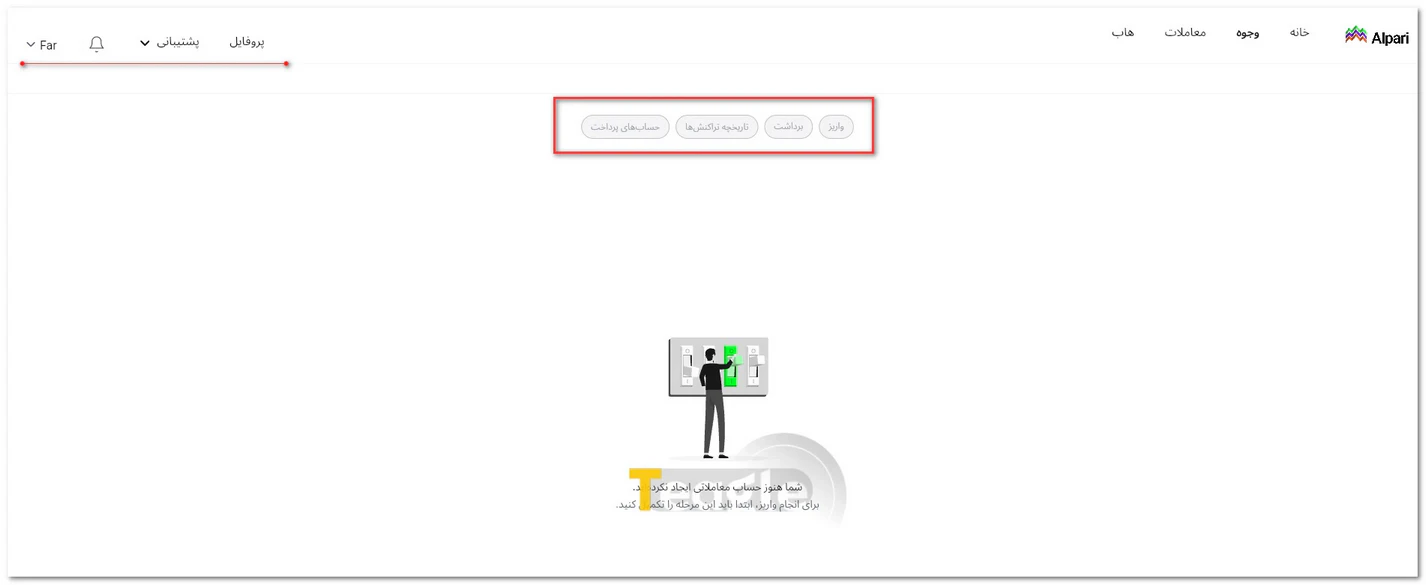
Start trading with an Alpari demo account
To get started with a demo account, select the demo option in your personal cabinet. Set a virtual balance (up to 100000 dollars) and download the platform. Trade risk-free to test your strategies. This account is great for learning forex with Alpari, and you can switch to a real account.
Downloading, Installing and Connecting Trading Platforms to Alpari Broker
After opening a trading account with Alpari, you can use the app Alpari Mobile or MetaTrader 4 and 5 to trade. Before downloading MetaTrader, check your account's platform type in your personal cabinet; to log in to an MT4 account you need to install MetaTrader 4, and for an MT5 account you need MetaTrader 5. Alpari offers both desktop and mobile versions of both platforms.
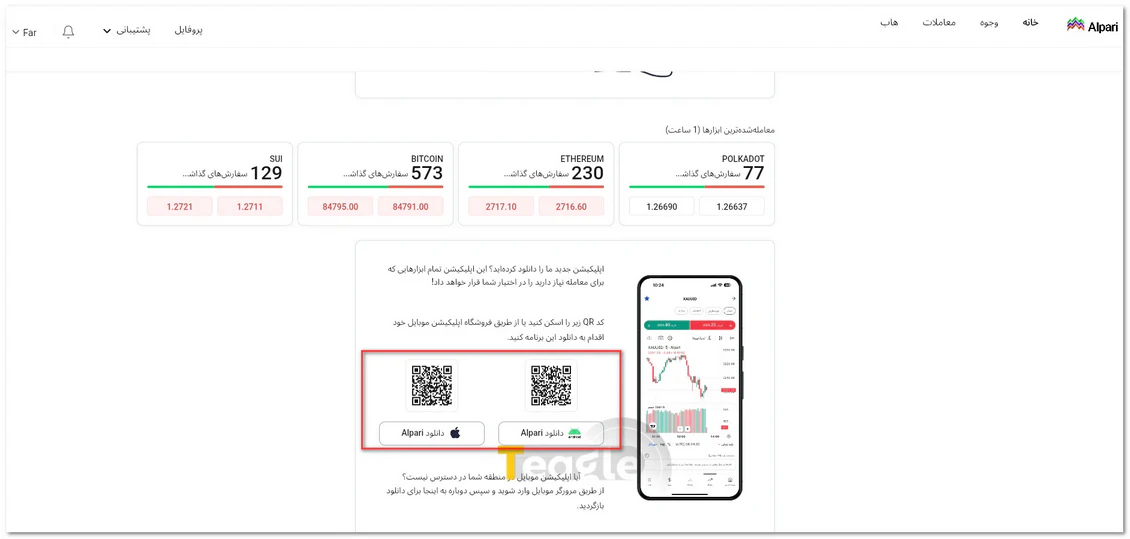
To connect, download the installation file from your Alpari profile and run it; on mobile, you can also install the MetaTrader app from the app store. Then, on the login screen, enter the trading account number, that account's password and its server . This information is different from the email and password you use to log in to your personal cabinet. You can find the server name and account details under «Profile ← Accounts» in your personal cabinet. If you have several real or demo accounts, when logging in, select the server of the account whose number you entered.
How do I connect my Alpari account to TradingView?
If you want to analyze charts on the TradingView website and place orders right there with your Alpari account, such a connection is not available for now; Alpari does not appear in TradingView's list of connectable brokers. That said, Alpari uses TradingView charts in its own app . By logging in to the Alpari app you can use these charts, but your trading account does not connect to the TradingView website or app.
Tutorial on using Alpari broker's binary options robot when trading
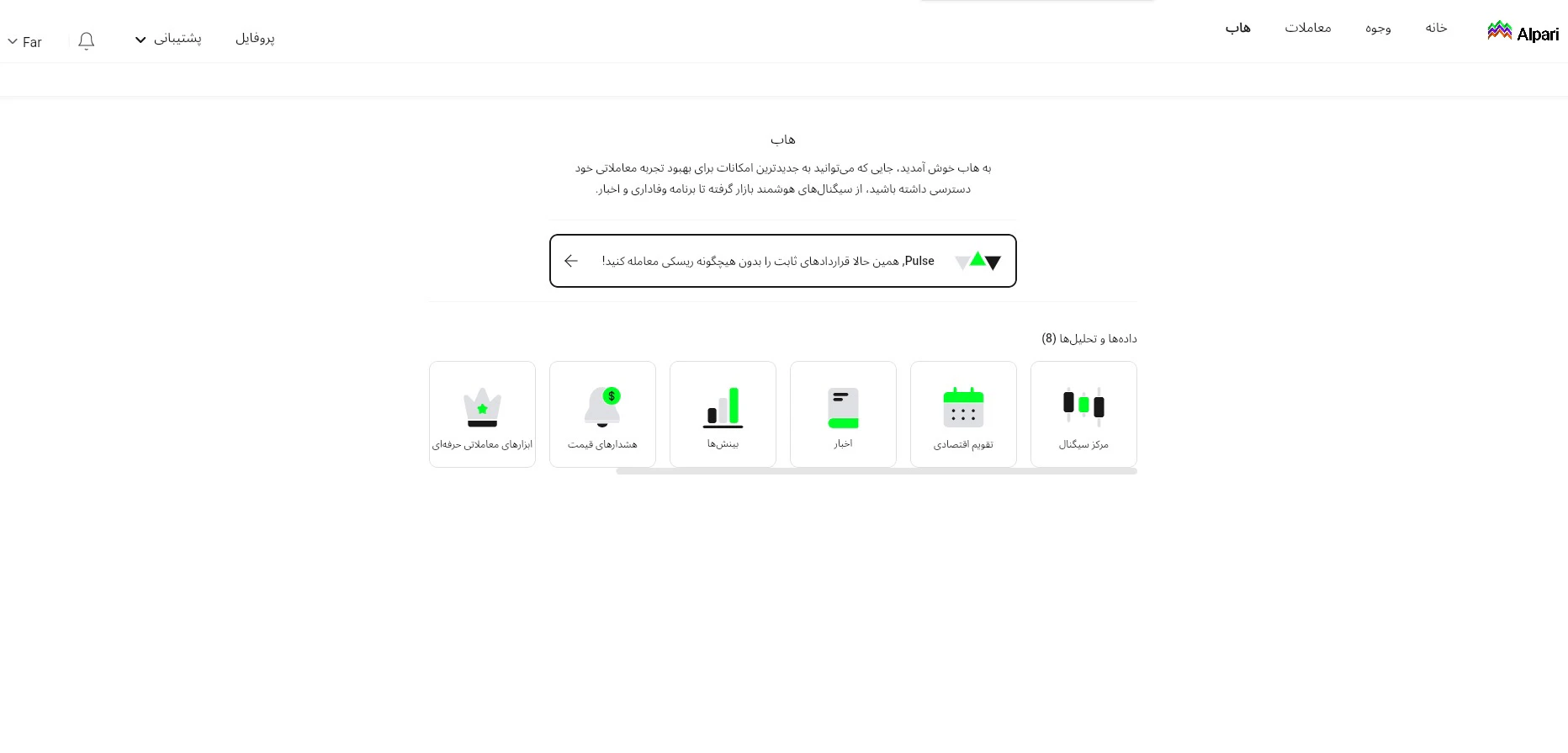
The path to Alpari broker's binary options trading leads from the Alpari cabinet hub to the Pulse platform, an environment for predicting the direction of price movement over short periods. Pulse does not analyze or place trades for you. To use it, follow the steps below:
-
Enter Pulse. After logging in to your Alpari personal cabinet, select the option Pulse from the «Hub» section. First open the demo environment to get familiar with the trading screen without depositing funds.
-
Set the trade details. Select the asset, the amount you want to put into the trade and the expiry time of the prediction. The current Pulse guide lists periods of 30 seconds, one minute and five minutes. Before continuing, read the payout ratio shown on screen for that trade.
-
Choose the price direction. If you predict the price will be higher at the end of the period, select the upward movement option, and if you expect a decrease, select the downward movement option. The trade is placed by pressing the BUY or SELL button. If your prediction is wrong, you lose the amount you set for that trade.
-
For real trading, activate your Pulse account. After the demo environment, register your email, confirm the code sent to you and switch the account mode from demo to real. Before depositing funds, check your account's access with Pulse's official support; the list of restricted countries in the Persian and English versions of this platform's guide is not the same regarding Iran.
How to Withdraw from Alpari + Rial Withdrawals
To withdraw, log in to your Alpari personal cabinet and select «Withdraw» from the «Funds» section. If you have several trading accounts, first make sure the account you want to withdraw from is selected at the top of the page. Then enter the withdrawal method, amount and destination details; reread the request details and confirm it. You can also track the status of the request under «Funds ← Transaction history».
Before submitting a request, your account and payment method must be verified. For deposits made with TC Pay or crypto, Alpari first requires the deposited amount to be withdrawn through the same route; so if you funded your account with TC Pay, check this method when withdrawing. If you have open trades, enough free margin must also remain in the account after the withdrawal.
Rial withdrawal from Alpari via TopChange
A Rial withdrawal is done in two steps: first, transferring the funds from Alpari to the payment wallet, then receiving them in your bank account via TopChange.
- In the Alpari cabinet, go to «Funds ← Withdraw».
- From the available methods, select «E-wallet» and TC Pay.
- After entering the amount and completing the request, track the transfer status in the transaction history.
If you have not used TC Pay for deposits before, you may need a $10 test deposit to enable withdrawals through this route.
Once the funds reach the wallet, make the withdrawal to your bank account in your TopChange account; TopChange describes receiving funds from the wallet as a bank transfer on its website. Check the exchange rate and final fees before confirming each step; the amount that reaches your bank account may differ from the amount recorded in Alpari.
How to Delete Your Alpari Account
If you intend to close your access to Alpari completely, first close all open trades and withdraw your account balance. As long as you have open trades or a remaining balance, the option to close the profile will not be available.
To submit a request, log in to your personal cabinet and, under «Profile ← General settings» , select the «Close Alpari account» option and confirm the request. Once the process is complete, you will be logged out of the account. According to Alpari's guide, closing the profile is permanent, and you cannot use the same email and phone number to register again. If you only want to deactivate one of your trading accounts , you don't need to close the profile; simply close that account's positions first and bring its balance down to zero.
Articles related to the broker
User reviews

Newest
