CPT Markets Broker Registration and Trading Tutorial for Iranians


The truth is that in Iran's forex market, finding a broker that both has credible regulation and doesn't catch us off guard mid-trade with server outages or strange spreads has become more like a game of chance. Every time we want to open a new account, rather than asking «How much profit will we make?» we worry about «How do we deposit and withdraw our money without hassle?»
CPT Markets has been attracting the attention of Iranian traders for some time thanks to its top-tier regulations such as the UK's FCA. But are this broker's services just as high-quality and transparent in the version for Iranian users? By reviewing the registration and identity verification methods, deposits and withdrawals, as well as how to download and install the trading platforms in the rest of this article, we try to answer this question.
Accessing the official CPT Markets broker website for Iranians
Before you start registering with CPT Markets, it is best to first get familiar with this broker's service structure, the access status for Iranian users and any possible restrictions through its official website. The official version of the site at https://www.cptmarkets.com supports the Persian language, and Iran (Islamic Republic of Iran) is also shown as one of the selectable countries in the account opening form; this indicates that the broker has made it possible to serve Iranian traders through its international branch.
However, the broker's official documents state that Iranian users' accounts are usually opened under the offshore branch CPT Markets Belize and do not benefit from the regulatory protections of the branch regulated by the UK's FCA.
Starting registration with CPT Markets broker
Opening an account with CPT Markets is very quick, and the whole initial process takes no more than a few minutes. To get started, just follow the steps below:
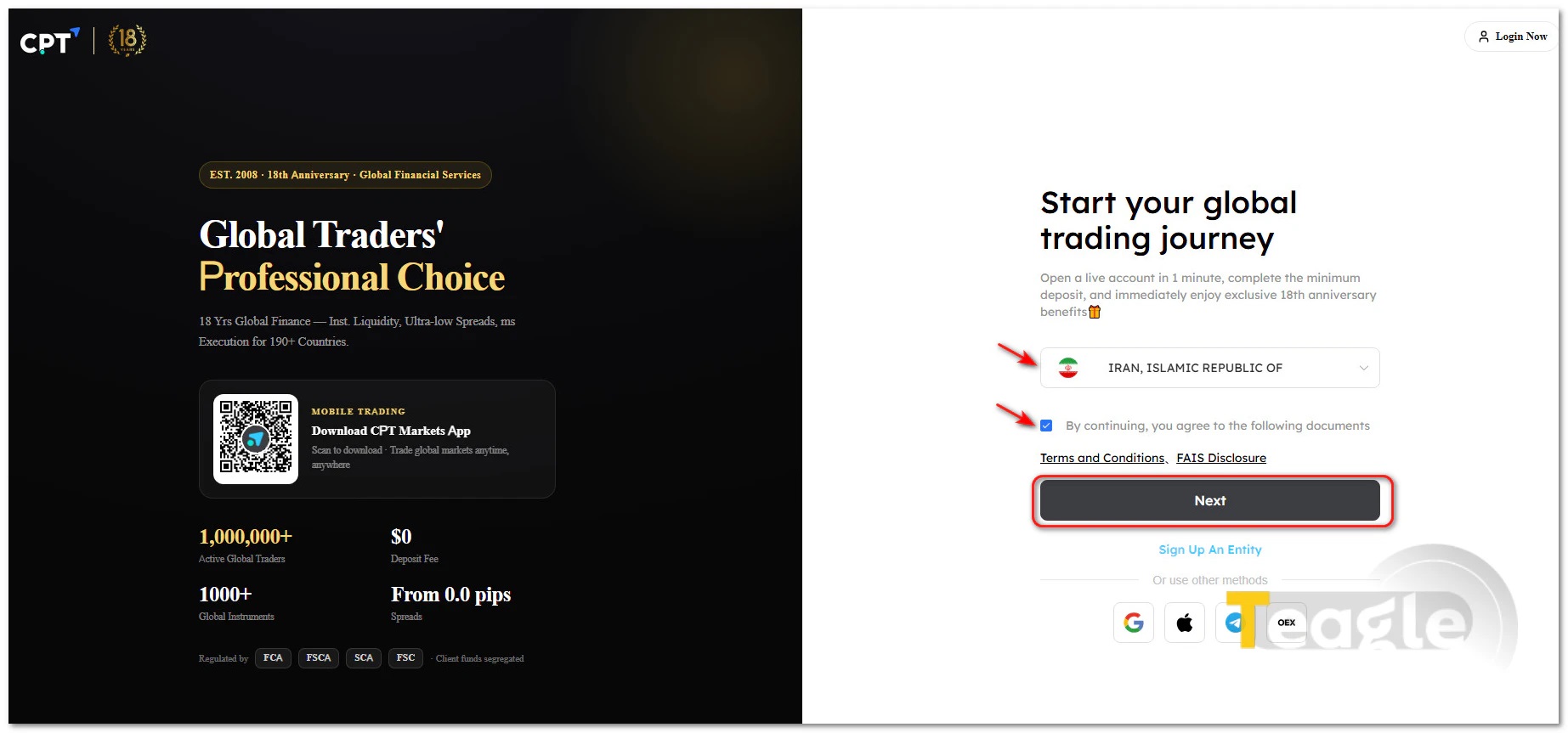
- Go to the broker's official website and click «Get Started» at the top of the page.
- In the form that opens, select your country of residence and tick the box agreeing to the terms. In the country selection, Iran is listed as «IRAN, ISLAMIC REPUBLIC OF» and you can select it without any problem
- Click the «Next» button.
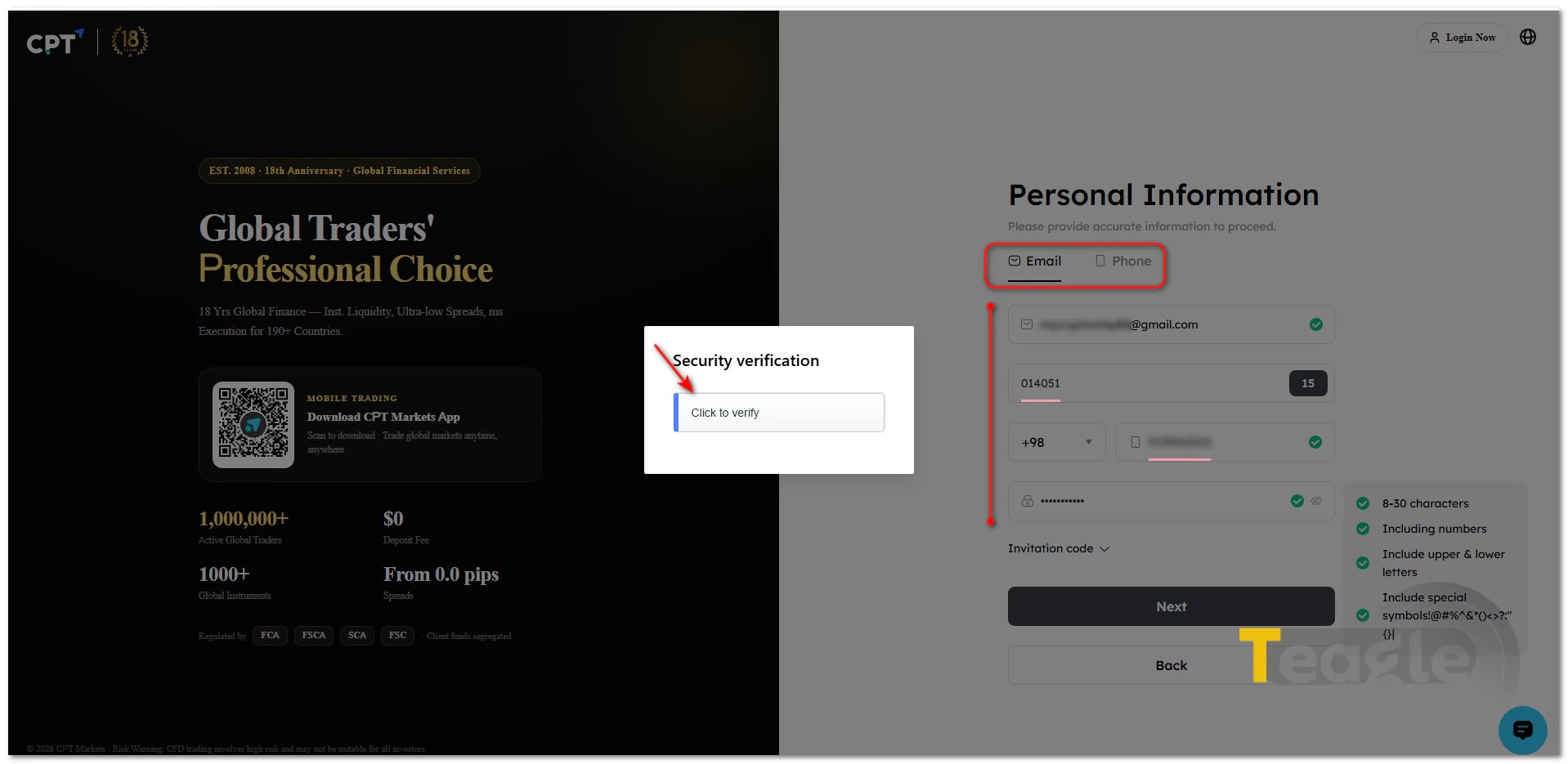
- On the personal information page, to sign up with email, select the «Email» option at the top of the form.
- Enter an active email address, your phone number and a strong password of 8 to 30 characters including lowercase and uppercase letters, numbers and special symbols in the relevant fields.
- By clicking the «Security Verification» box and confirming your email, a 6-digit code will be sent to you.
- Enter the code in the second box and finally click «Next».
You will now be taken to your personal dashboard at CPT Markets broker. We recommend enabling two-factor authentication (2FA) right after logging in to ensure the security of your assets and personal information.Identity verification and document upload at CPT Markets
After completing registration, to fully activate your account and gain access to deposits, withdrawals and opening a trading account, you must complete the identity verification (KYC) process from within your dashboard. Make sure you enter your identity details exactly as they appear on your official documents, because any mismatch between the registered information and the submitted documents can delay or lead to rejection of your request. To start this process:
- Click «Verify Now» in your dashboard.
-
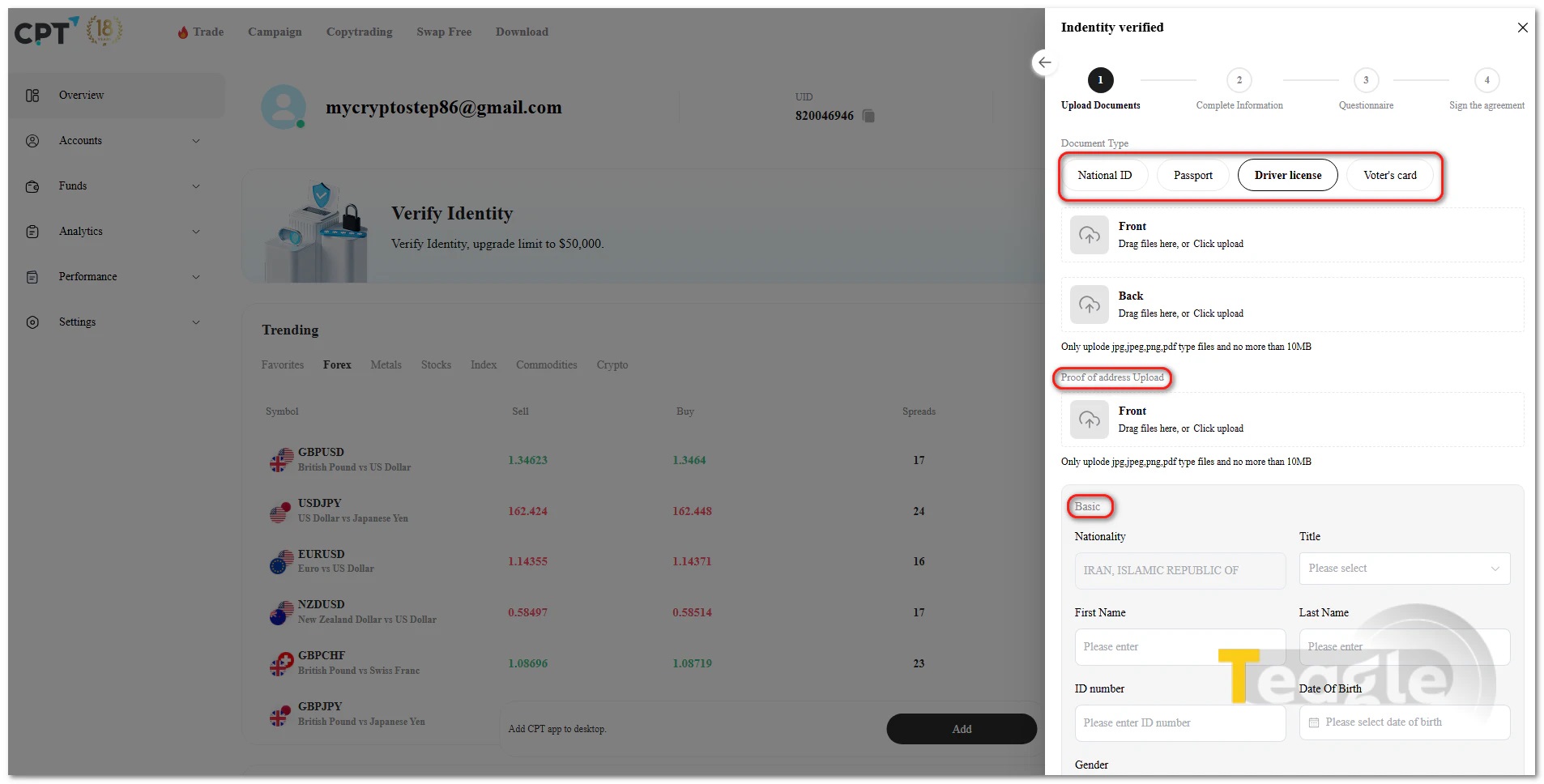
To prove your identity, the broker accepts one of the following valid identification documents:
- National ID (national ID card)
- Passport (passport)
- Driver License (driver's license)
- Voter's Card (voter's card; in eligible countries)
-
After choosing your preferred method and uploading images of the front and back of the document, you must also provide proof of residential address (Proof of Address) documents. Next, carefully enter your basic information, including nationality, title, first name, last name, ID number, date of birth and gender. Note that all files must be in jpg, jpeg, png or pdf format and no larger than 10 MB.
Submitted documents are usually reviewed by the support team within a few business hours. Once approved, you can open your trading account .
Choosing the trading platform and trading account type in the CPT panel
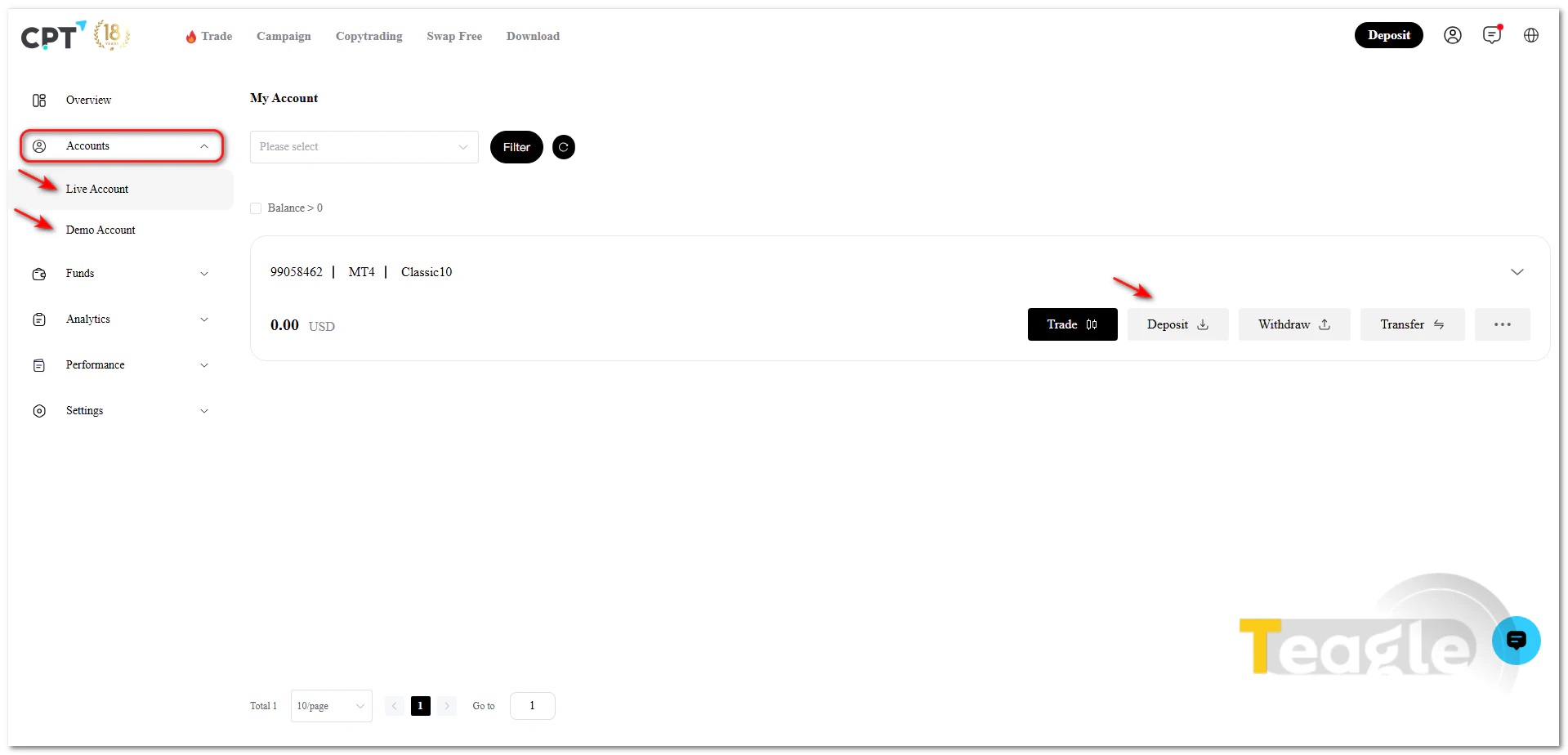
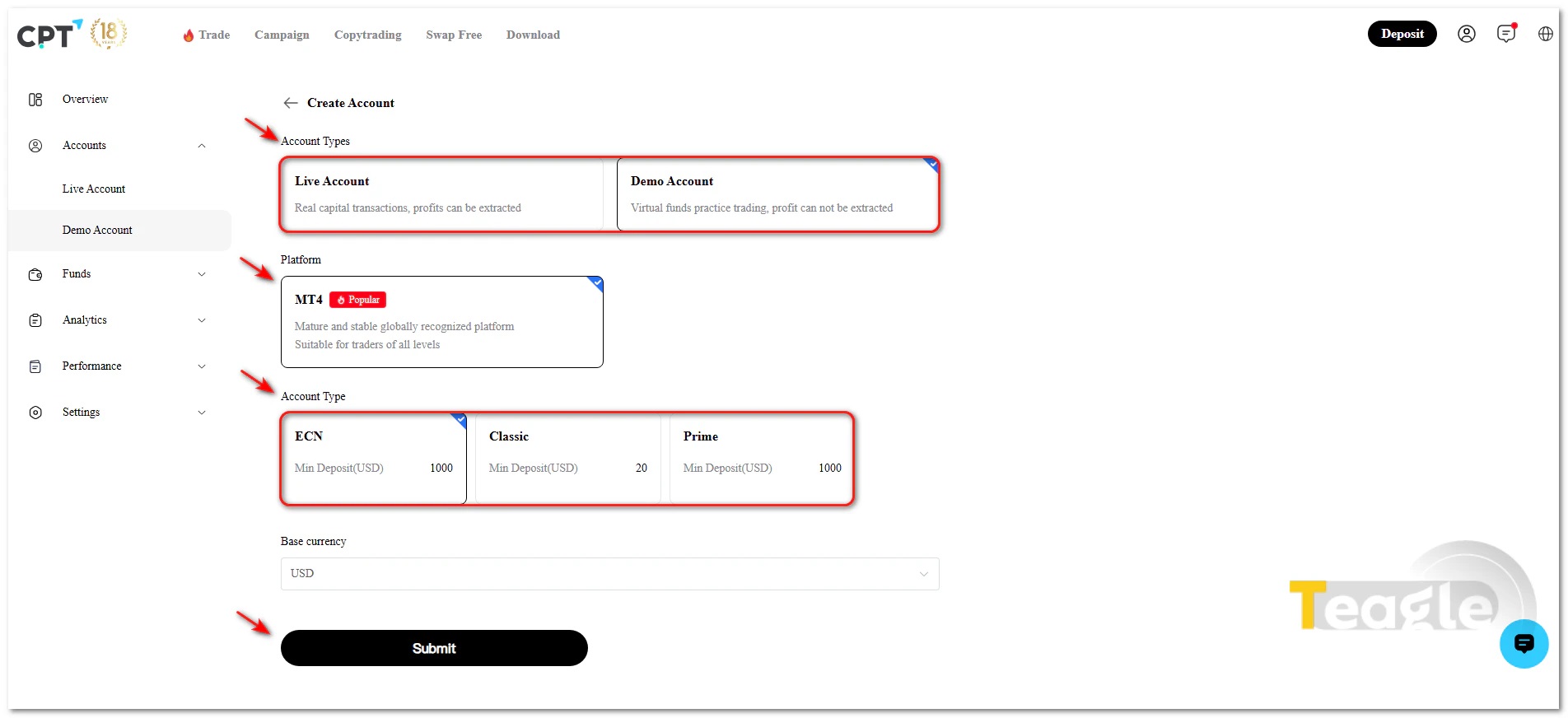
Once your identity verification is approved, you can create your first trading account from the CPT Markets Portal by going to the «Accounts» section. At this stage, the broker asks you to choose the account type, trading platform, account base currency (Base Currency), trading leverage (Leverage) and, in some branches, the account's regulation. Choosing these correctly matters a lot, because once the account is opened, some settings such as the base currency cannot be changed, and you would need to create a new account to change them.
Depending on the branch you register with, CPT Markets offers traders Standard and ECN accounts. Besides a live account, you can also open a demo account (Demo) from within the portal, so users can test their strategies in a simulated environment before entering the real market. At this same stage, you also need to choose your preferred trading platform from MetaTrader 4, MetaTrader 5 or cTrader.
Downloading and Installing CPT Markets MetaTrader 4 (MT4)
MetaTrader 4 (MetaTrader 4) is still one of the most popular forex trading platforms at CPT Markets and is available through the «Download» page on the broker's official website. The software is offered for Windows, macOS, Android, iOS and also as a WebTrader version, so you can connect to your trading account through a browser without installing any software.
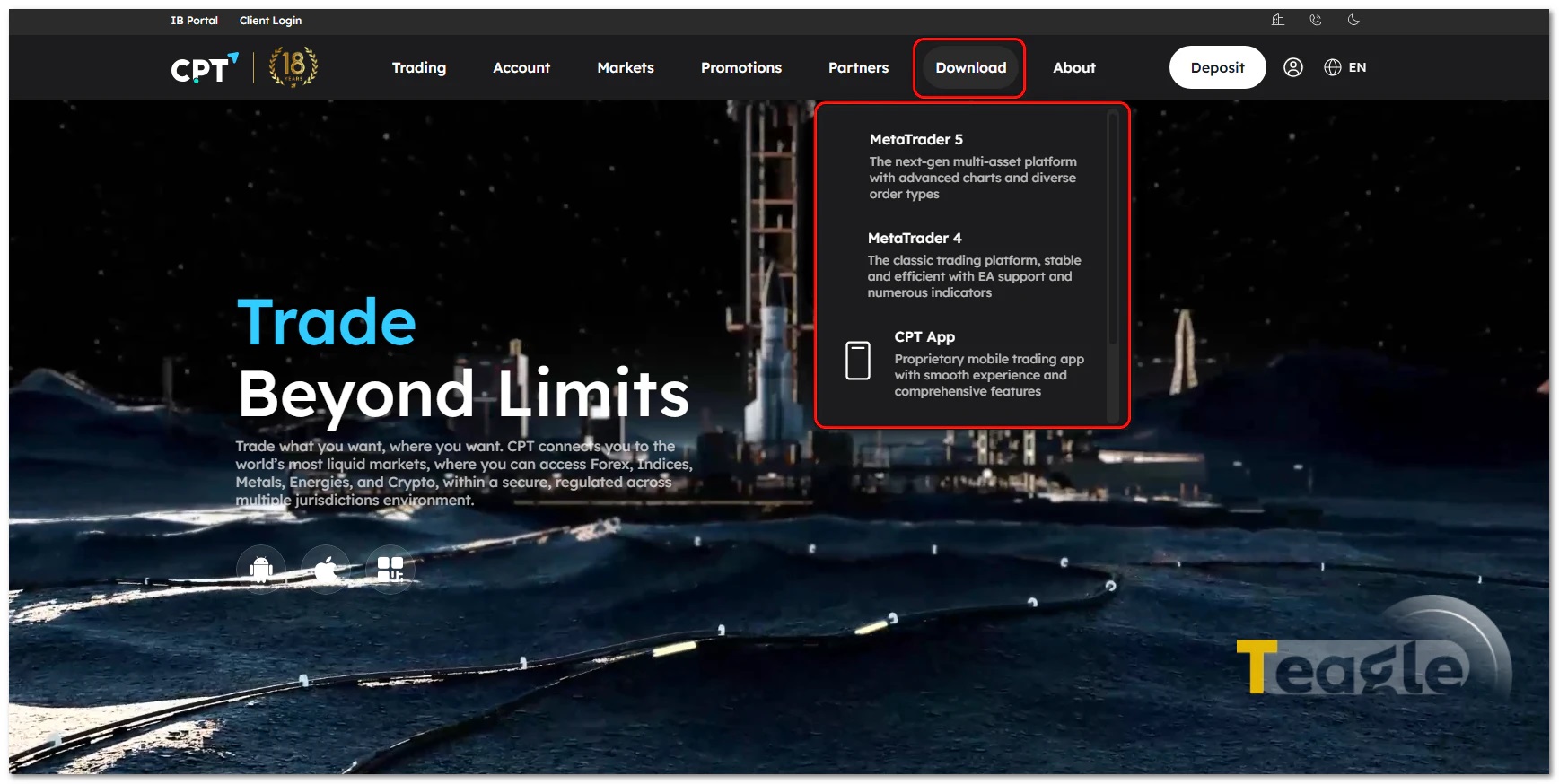
After downloading and installing MT4, simply run the software and enter your trading account details via File > Login to Trade Account. Once connected to the server, live market prices are displayed and you can start trading.
Downloading and Installing CPT Markets MetaTrader 5 (MT5)
If you plan to trade multiple markets at the same time or use more advanced analytical features, MetaTrader 5 (MetaTrader 5) is a better choice. CPT Markets also offers the official MT5 version for various operating systems, and users can get it directly from the downloads section of the website.
The installation and login process in MT5 is similar to MT4. After installing, use the Login to Trade Account option to enter your account number, password and CPT Markets' dedicated server. If the details are correct, your account balance, trading symbols and live market data load automatically in the platform, and the account is ready for trading.
|
MetaTrader 5 Version |
Suitable For |
Download Link |
|
MetaTrader 5 for Windows |
Windows 10 and 11 (desktop version) |
|
|
MetaTrader 5 for macOS |
MacBook and iMac |
|
|
MetaTrader 5 for Android |
Android phones and tablets |
|
|
MetaTrader 5 for iPhone and iPad (iOS) |
iPhone and iPad |
Logging In and Connecting to the CPT Markets Server
After you open a trading account, the broker provides your login details, including the account number (Login ID), trading password (Trader Password) and server name (Trading Server), via the client portal and your registration email. These details are required to connect your account to MT4, MT5 or CPT's proprietary platform.
To log in, first run the trading software and select the Login to Trade Account option. Then enter the account number, password and dedicated server provided by the broker. If the details are correct, the connection to the server is established and the connection status is shown in green at the bottom of the software.
Depositing and starting to trade with CPT broker
After opening an account and connecting it to the trading platform, the final step before entering the market is depositing funds and starting to trade. CPT Markets offers various payment methods for funding your account in the user panel, and once a deposit is submitted and confirmed, the account balance is automatically displayed on the trading platform. Below, we go through the deposit process step by step.
- On the main page of your user panel, select «Deposit». You can also access «Deposit» by clicking the «Funds» option in the left-hand menu.
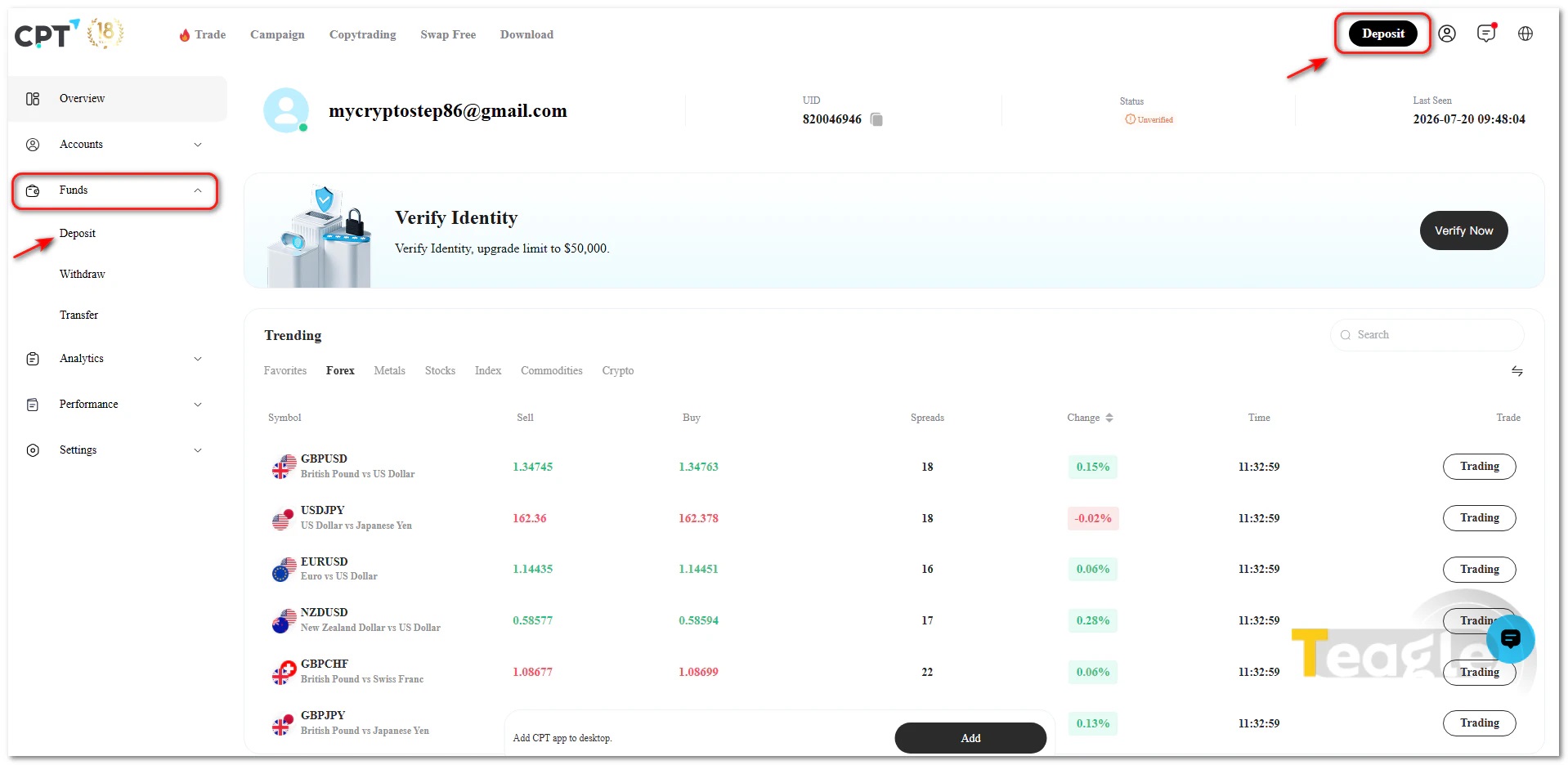
- On the new page, in the «Currency» section, select either USDT or USD depending on your preference.
- Once you select either option, the broker will show you a set of active, available methods for funding your account. For example, at the time of writing, Tether deposits are available via «USDT Pay» from two companies, OMPay and CoinPayment. For dollar deposits, you can choose between a bank transfer or the NETELLER and SKRILL platforms.
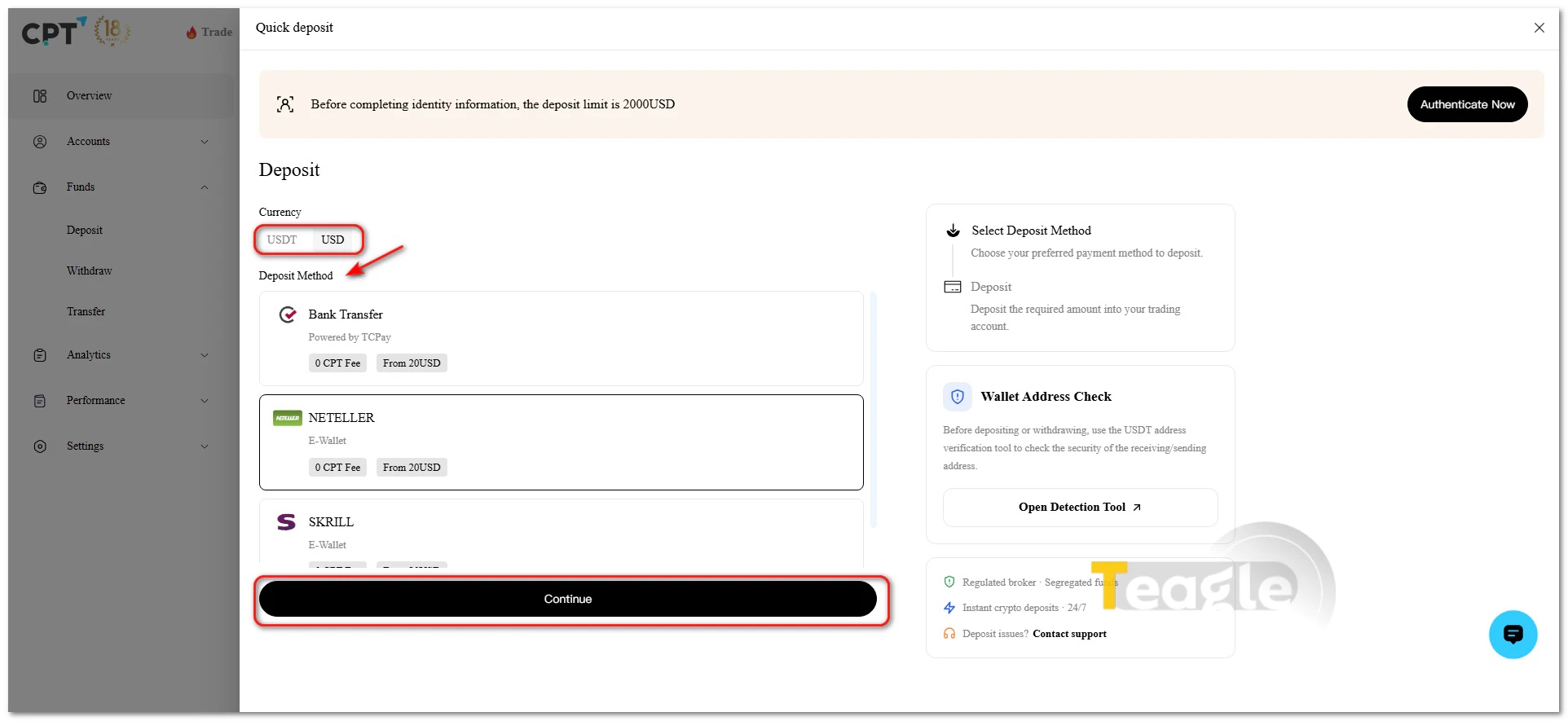
- After choosing your preferred method, click «Continue».
-
To deposit Tether, after selecting the network you want, choose the account you intend to fund from the «Account» drop-down menu. After entering the amount, click «Submit». Note that the minimum deposit for all methods is set at 20 dollars.
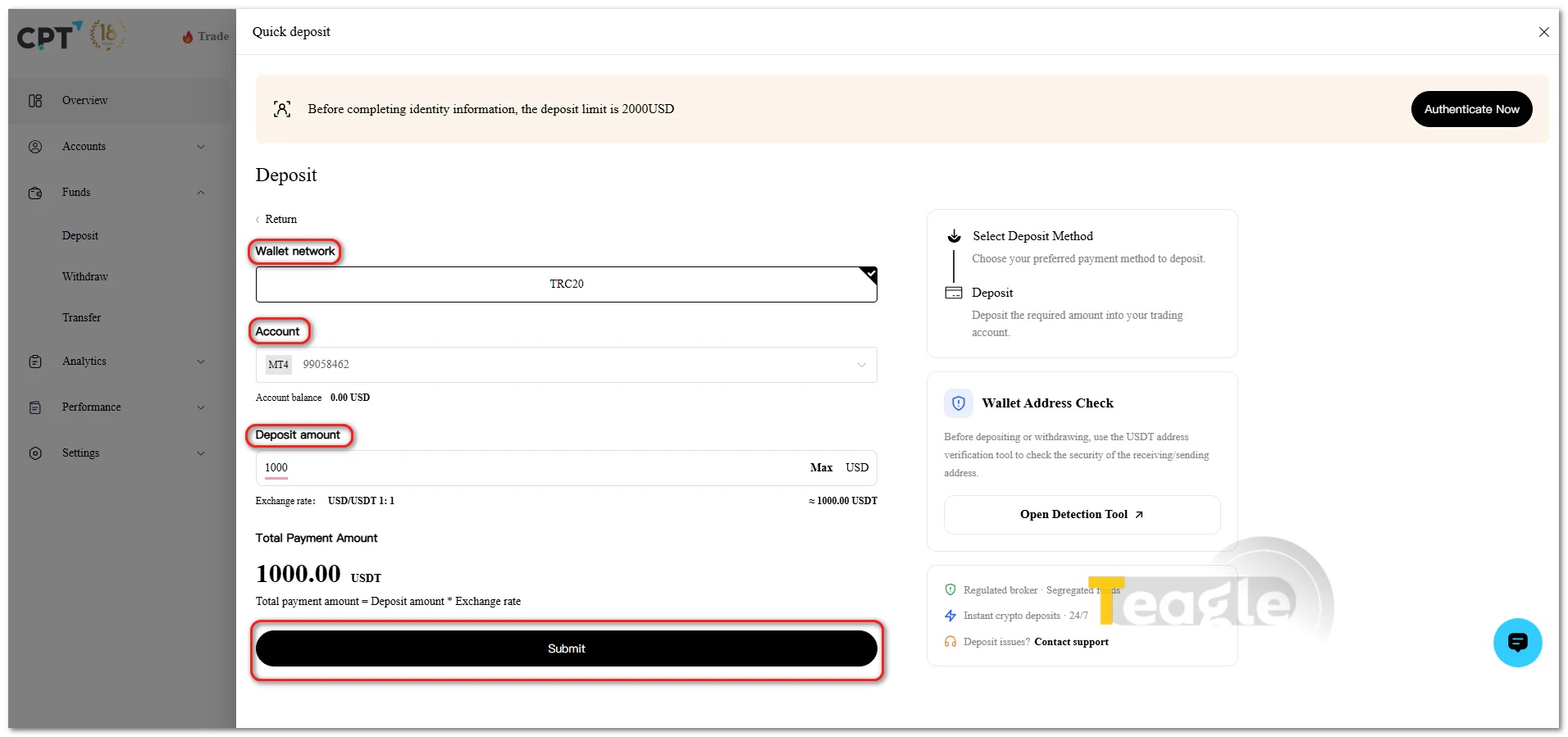
- For the dollar method, after selecting the payment platform, specify the account and the amount you want to deposit, then confirm your request.
- A page will then open where you need to enter the payer's details, including first name, last name, type of ID document and ID number.
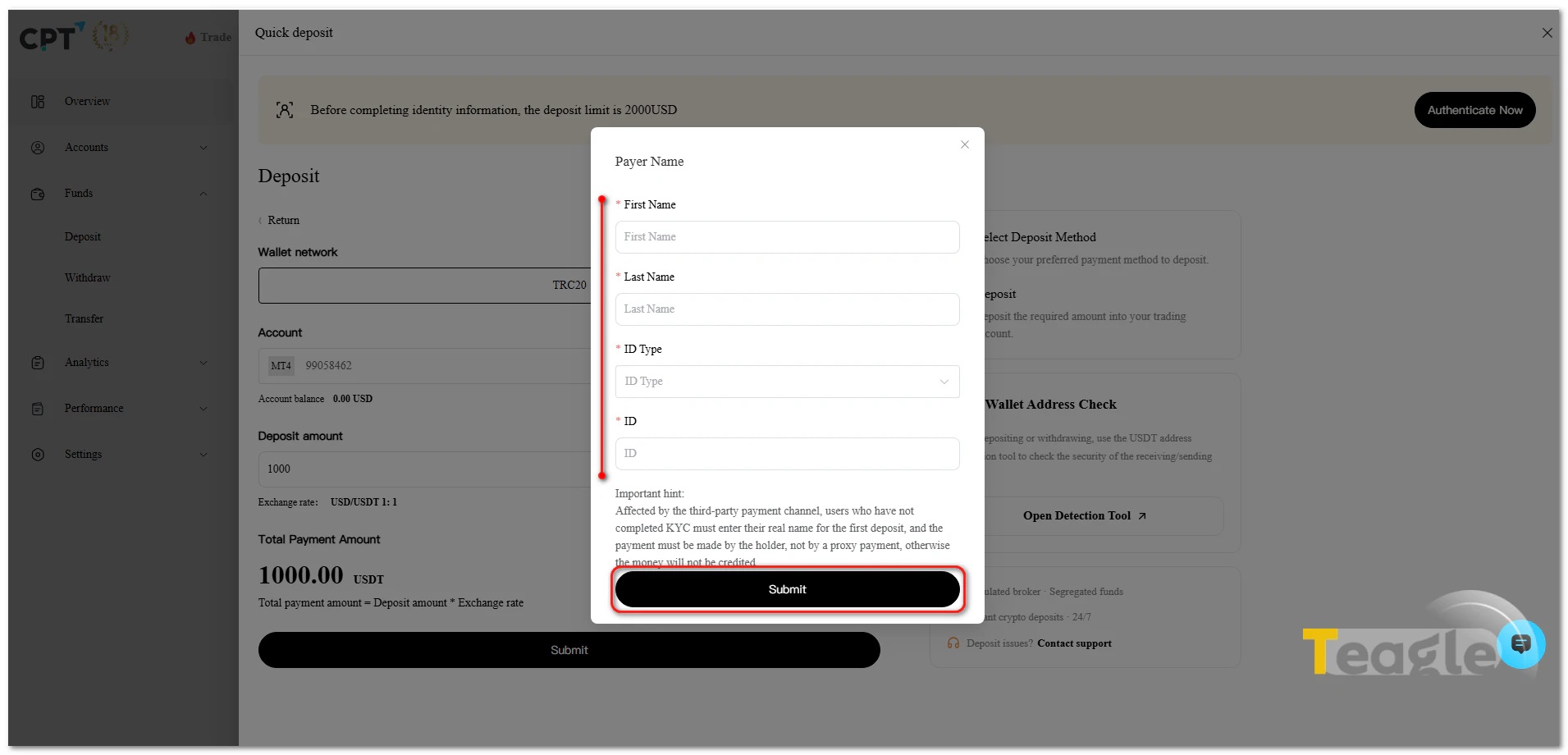
Continue the process according to the requested documentation until the deposited amount is transferred to your account. An important point to note is that until you complete the identity verification process, your deposit limit is 2000 dollars, which increases to 50 thousand dollars once your account is verified.
How to withdraw from CPT Markets broker
Withdrawals from CPT Markets are made through the client portal and are only possible for accounts whose identity verification (KYC) process has been fully approved. According to the broker's official policies, withdrawal requests are reviewed by the finance department after submission and, if they comply with anti-money laundering (AML) rules, are sent to the payment gateway or bank for processing. Although CPT Markets states on its official pages that requests are processed quickly and that the broker charges no withdrawal fee, the final time it takes for funds to arrive depends on the chosen payment method and the bank or financial service provider.
To submit a withdrawal request, simply follow these steps in the client portal:
- Log in to the dashboard with your verified account.
- From the menu «Funds» choose the option «Withdrawal» or Withdraw Funds.
- Specify the trading account and the amount you want to withdraw.
- Select the withdrawal method and check your bank account or payment wallet details.
- Submit the request and track its status in the Withdrawal History section.
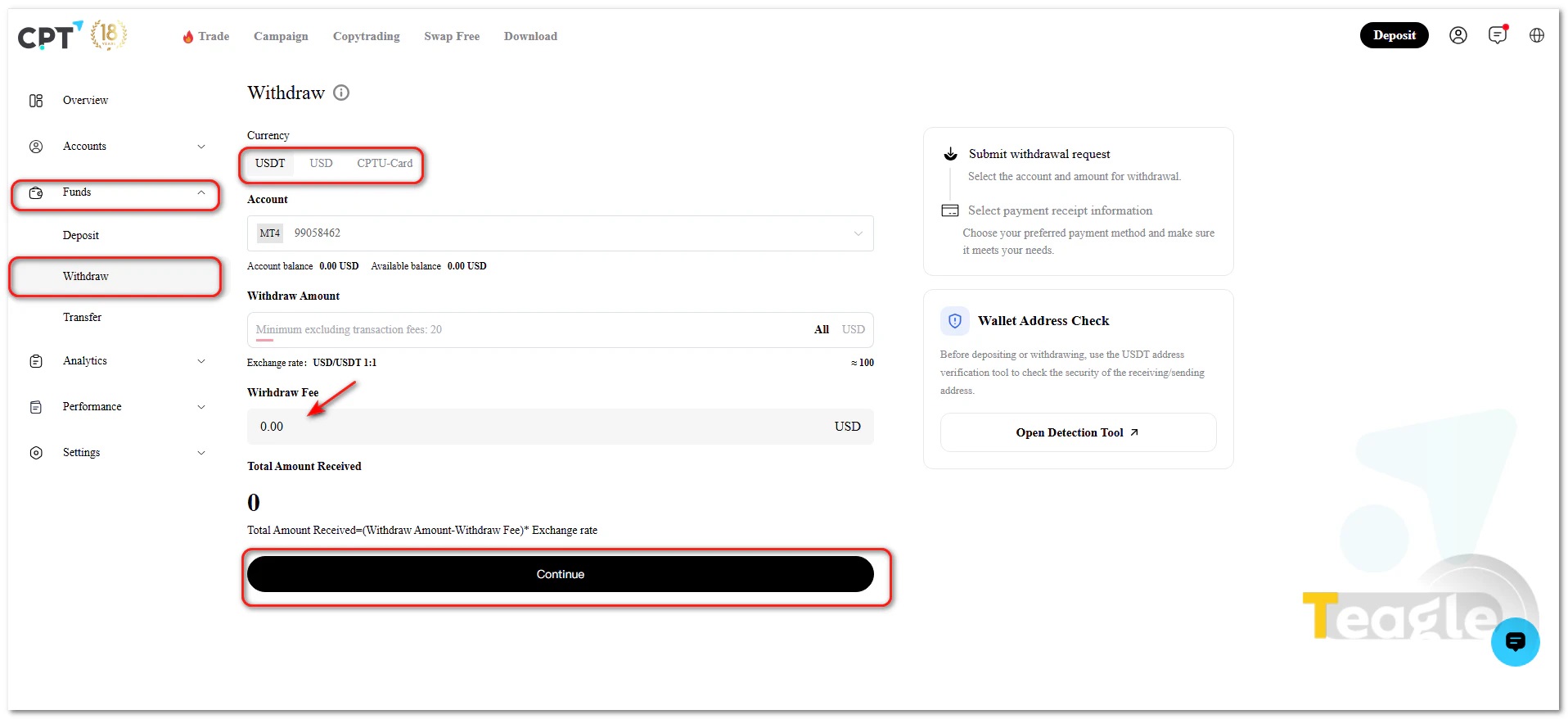
Once the finance department approves the request, the amount is sent to the selected payment method, and the outcome of the request can also be viewed in the client portal.
One of CPT Markets' most important rules is the enforcement of the Return to Source policy. Under anti-money laundering (AML) regulations, the broker is only permitted to return funds to the same card, bank account or wallet from which the initial deposit was made.
Frequently Asked Questions
Articles related to the broker
User reviews

Newest
