Guide to Signing Up and Trading on the Iranian Exchange Nipoto



Before your first trade on Nipoto, you need to understand how money moves in and out: from funding your account and choosing a Toman or Tether market to placing an order and transferring assets to a personal wallet. Knowing what information you enter and what you confirm at each step helps you approach buying and selling with more confidence.
In this tutorial, we walk through using the Nipoto exchange step by step, from visiting the website and signing up to identity verification, deposits and withdrawals, and placing a trade. The explanations are based on the exchange's official guides and a step-by-step experience of signing up on this exchange, so that you have a clear path to follow for each task.
How to Log In to the Nipoto Exchange Website and Download the App
To get started with Nipoto, you can use the web panel or download the Android app. The way to access the panel and download the app is on the Nipoto exchange website. In this section, we explain step by step how to enter the official website and find the app download option.
To access the Nipoto exchange website, open https://nipoto.com in your browser. The Android app download section is also on this same website.
Downloading and installing the Nipoto app for Android
To download the Nipoto exchange app for Android, follow these steps in order:
1. Go to the Nipoto website.
2. Go to the «Nipoto app, always with you» section.
3. Tap «Download Android version».
4. In the window that opens, choose either «Download from Bazaar» or «Download from Myket».
Note that the iOS version of Nipoto is not yet available, and the exchange has claimed it will soon offer this to its users as well.
Accessing the Nipoto exchange web version
To use the Nipoto web version, open the official website in your browser. On the homepage, selecting «View trading market» takes you to the markets section at nipoto.com/markets, where you can see coin prices. To access the user panel, enter app.nipoto.com directly in your browser.
How to Sign Up on Nipoto Exchange
At the Nipoto sign-up stage, you create your account with an email and password; your identity and bank details are submitted at the verification stage. After confirming your email you can log in and see the dashboard, but to start financial transactions you also need to complete Level 1 verification.
Sign-up steps with a mobile number or email
Before you start signing up on Nipoto, make sure you have access to your email and mobile number. These two are how you receive verification codes while creating and activating your account, so enter your contact details carefully so you are not left waiting for a message sent to the wrong email or number.
To sign up:
- From the site's homepage, go to the «Sign Up» section.
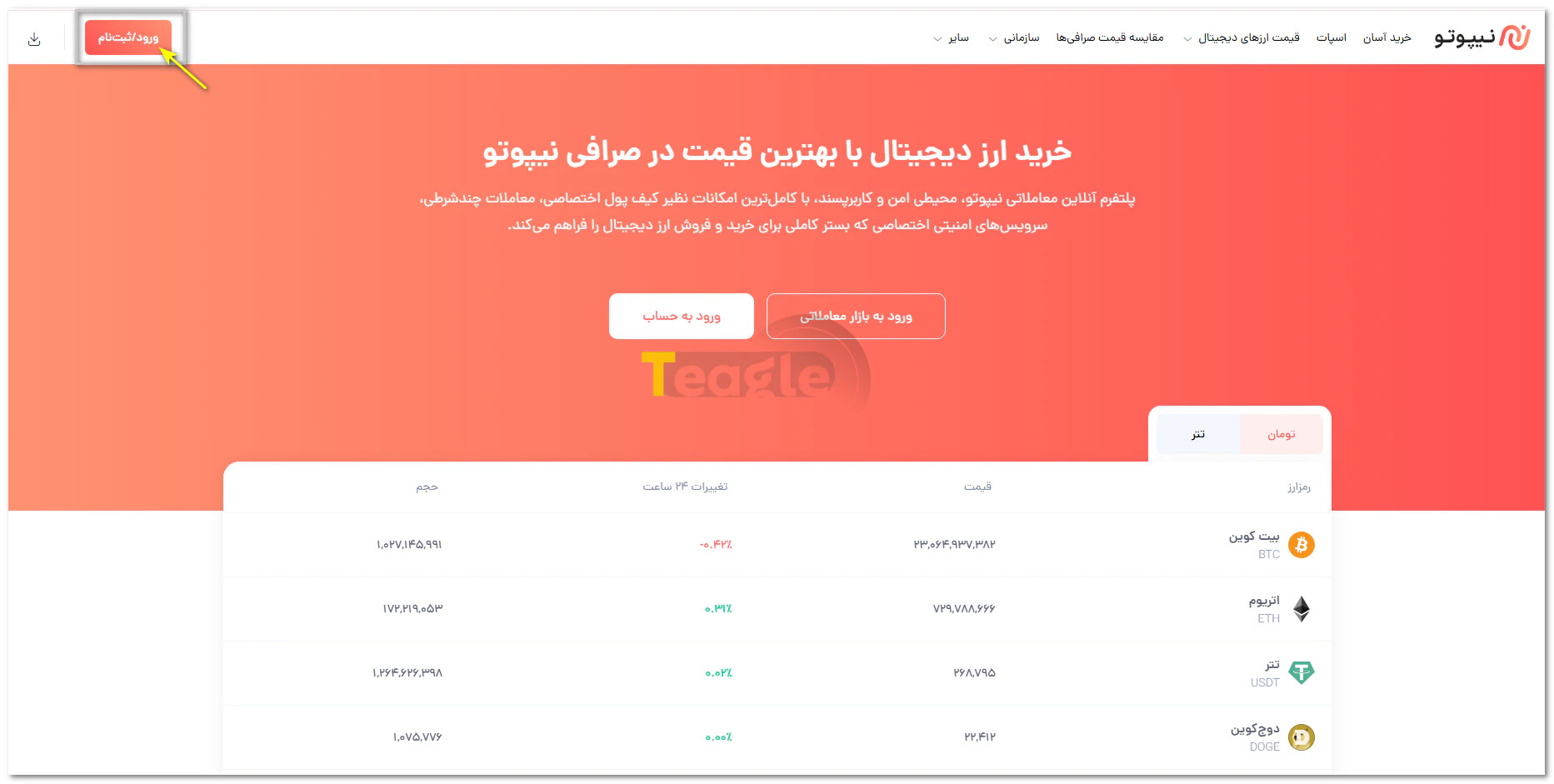
- Enter a phone number registered in your name.
- If you wish, you can enter an email address you have access to.
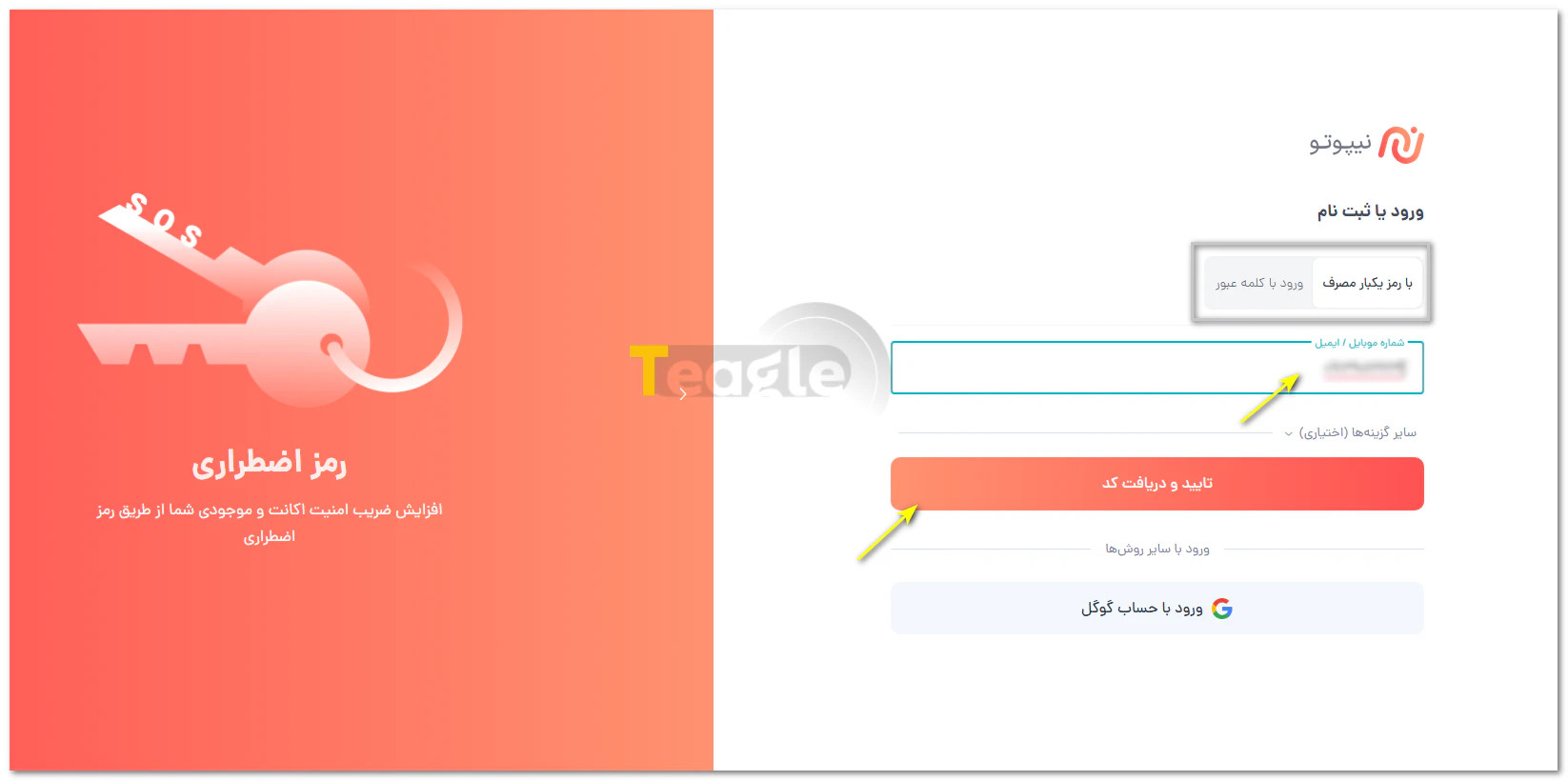
Among the options above, if you choose «Log in with one-time password», a 6-digit verification code will be sent to you after you confirm your phone number or email. Entering this code in the relevant field will take you to your user dashboard on the exchange.
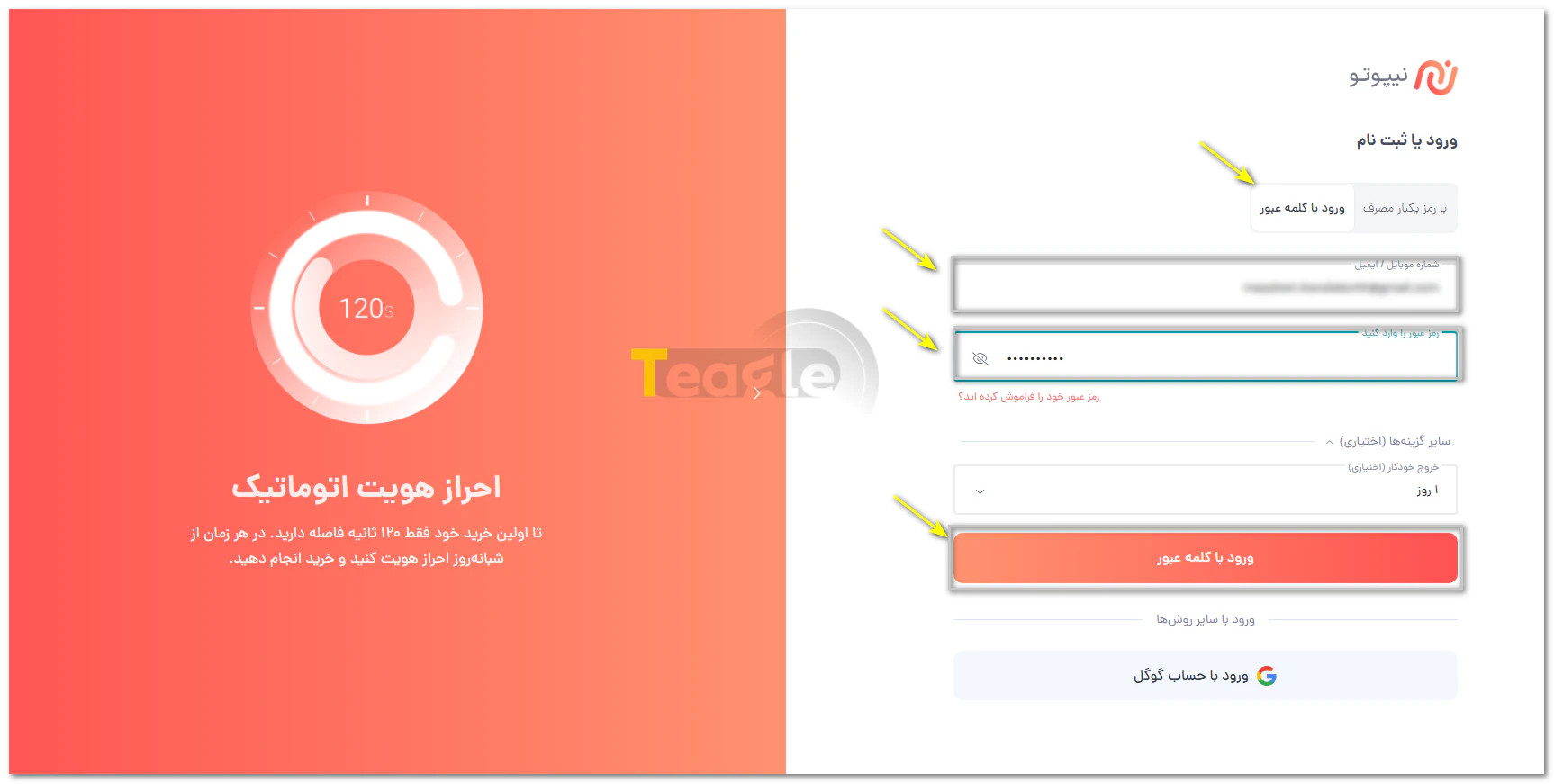
But if you choose to log in with a password, you need to set a password on the new page after entering your email or phone number. At the bottom of this page you will also see an optional setting that lets you choose the automatic logout time for your account, from one hour to one week.
Once done, click Log in with password to enter your personal dashboard.
Setting a secure password and basic security tips
For your Nipoto account, choose a long, unique password of at least 8 characters, including uppercase and lowercase English letters and numbers, that you have not used for any other account; your name, date of birth and mobile number are not good choices.
After logging in to the dashboard, enable two-factor authentication for your account from the Security menu as soon as possible:
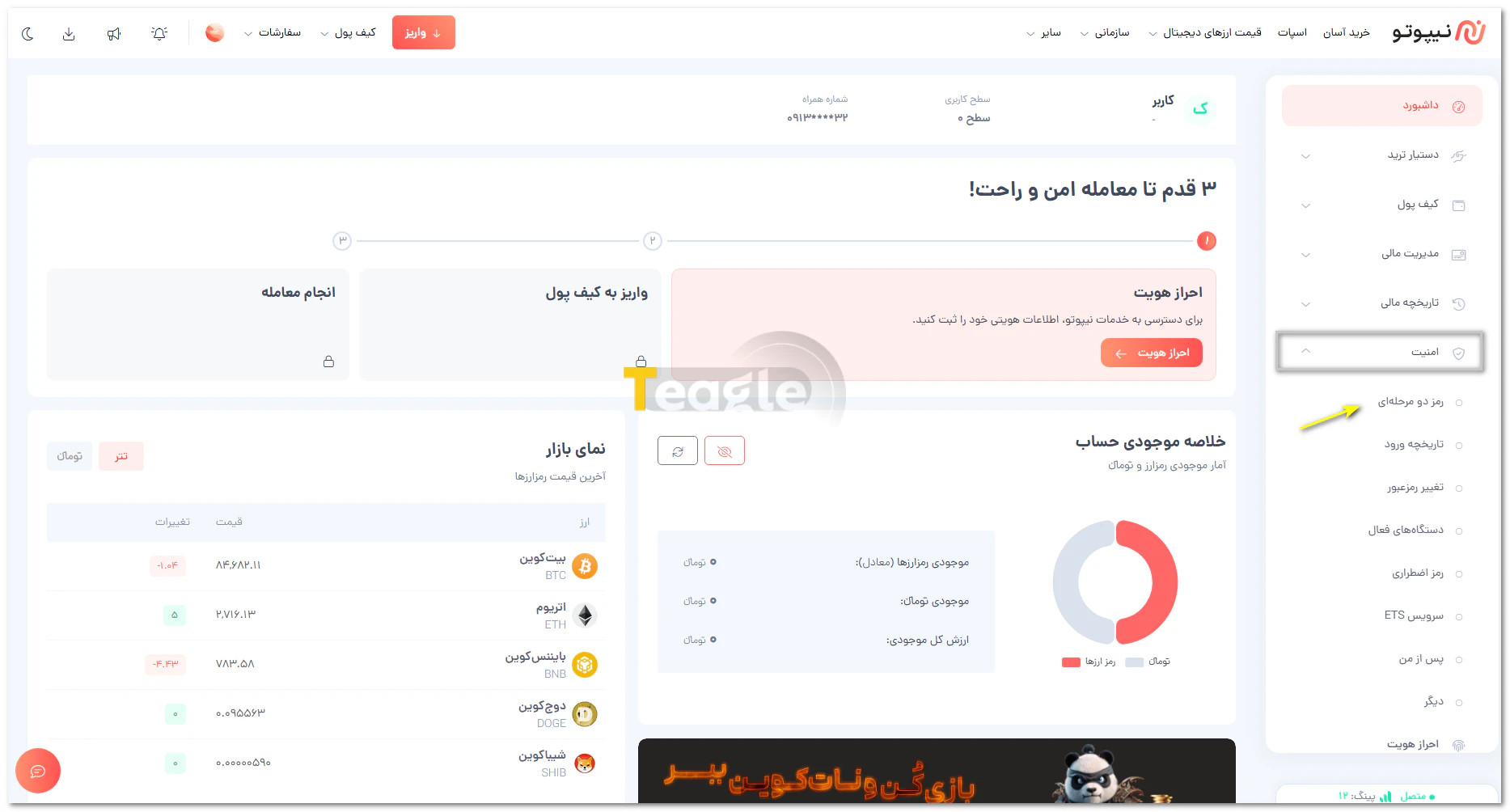
- Next to app verification, select the enable option and enter the code sent to your email.
- Open Google Authenticator or a similar app on your phone and, using the add option, scan the QR code shown in your account or enter the key.
- Enter the code generated in the app on Nipoto.
-
Keep in mind that you should never keep your password in messaging apps or unprotected notes; instead, use a reputable password manager to store it. Take the security of the email linked to your account seriously too, and never share verification codes with anyone, even someone who claims to be exchange support.
Identity Verification (KYC) Steps on Nipoto
Identity verification at Nipoto involves steps to confirm the account holder's details before starting financial transactions. In this process, your identity information is matched against ownership of your mobile number and bank card. The verified level of your account also determines your deposit and withdrawal limits; that is why, before funding your account, you should know which documents you need and what access each verification level gives you.
To start financial transactions, first complete Level 1 verification. Higher levels require more documents.
Fast, automatic verification
On its homepage, Nipoto describes its verification as automatic and talks about a 120-second gap until your first purchase. This statement is the exchange's own description; it does not set a guaranteed approval time for each application.
To upgrade to Level 1:
- In the right-hand menu, click «Security» and then select «Identity Verification». An easier way is to click the «Identity Verification» option in the box in the middle of the page.
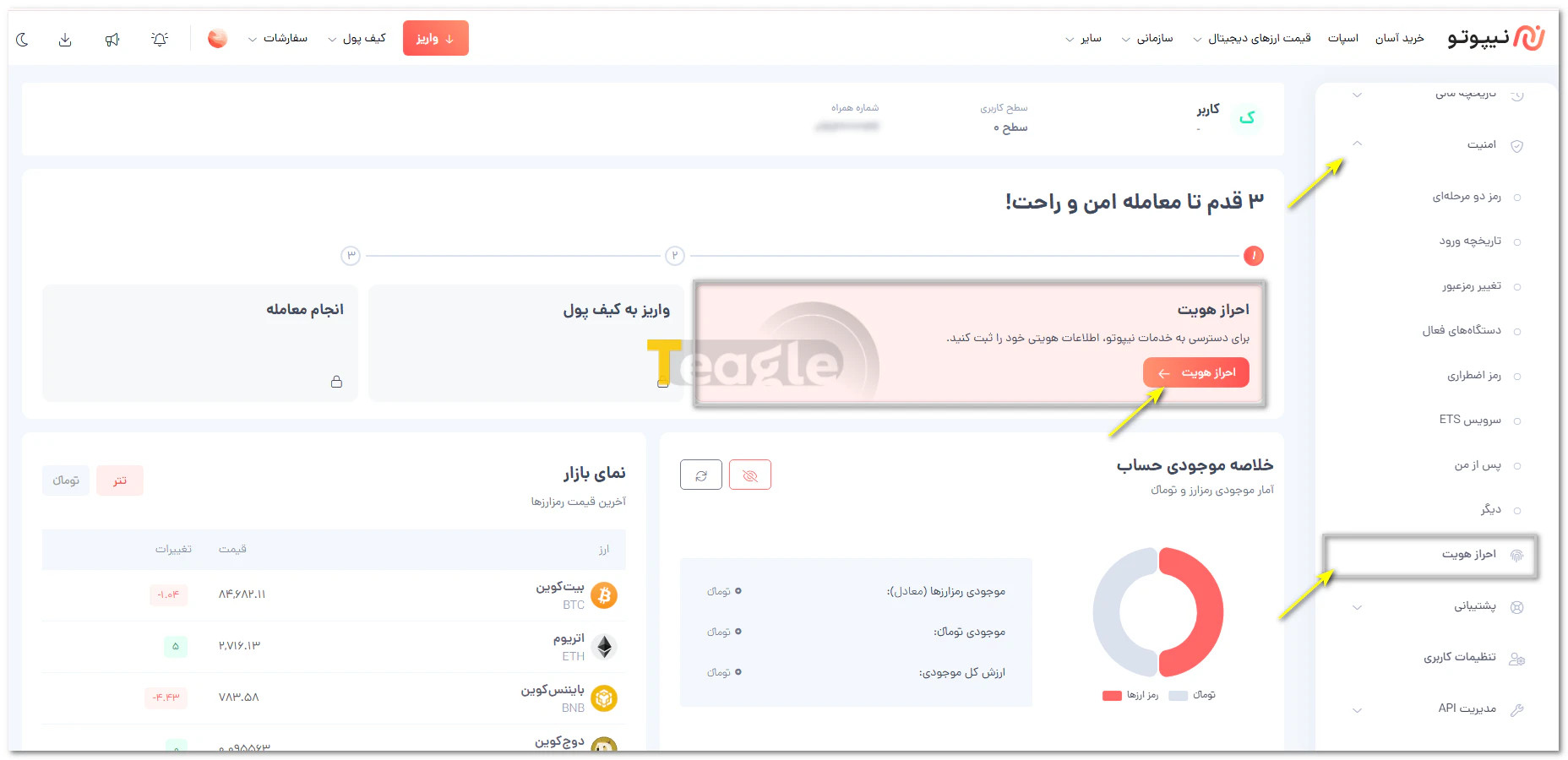
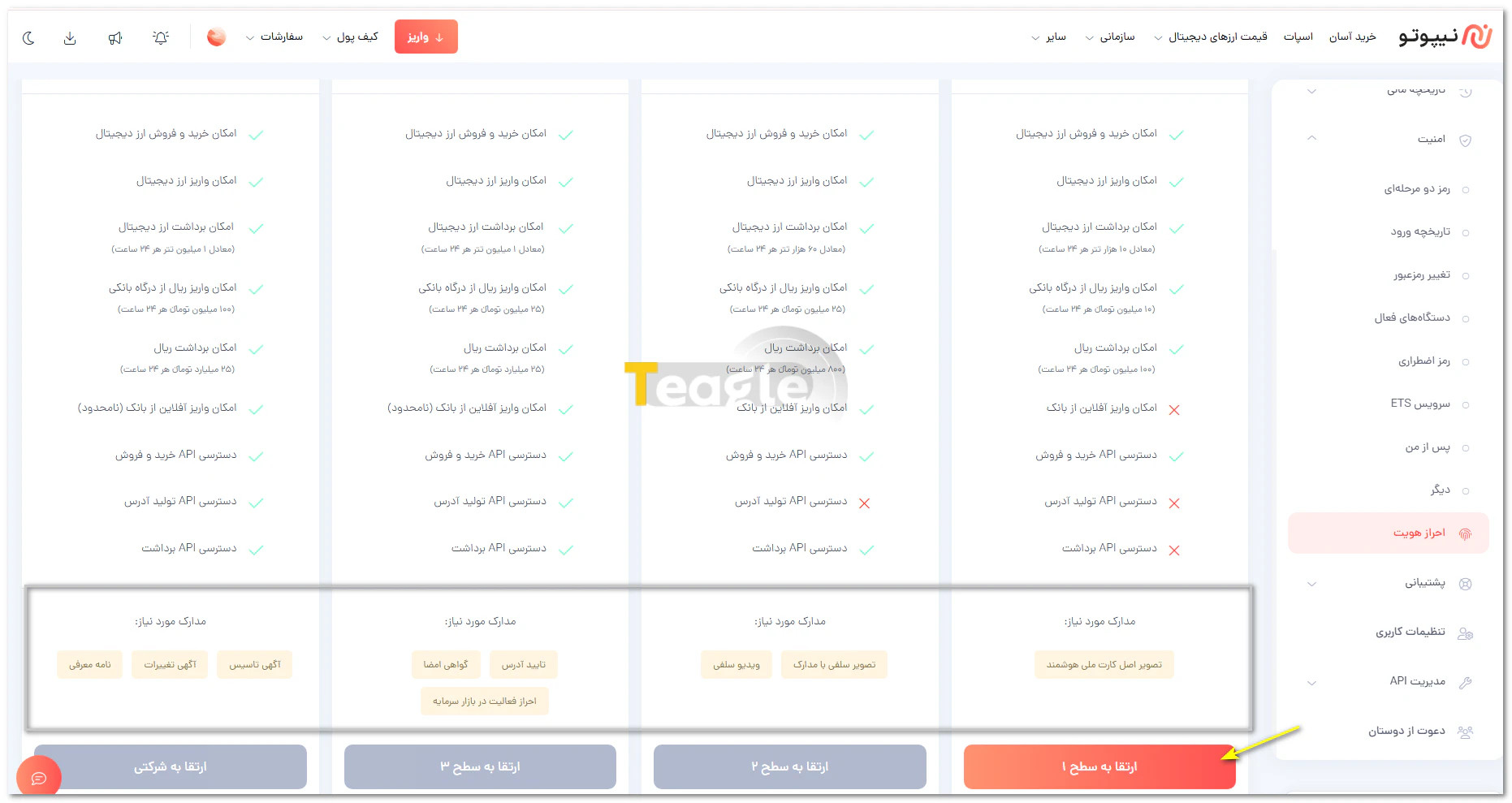
- On the new page, you will see information about each user level, its features and the documents required to upgrade. Select «Upgrade to Level 1».
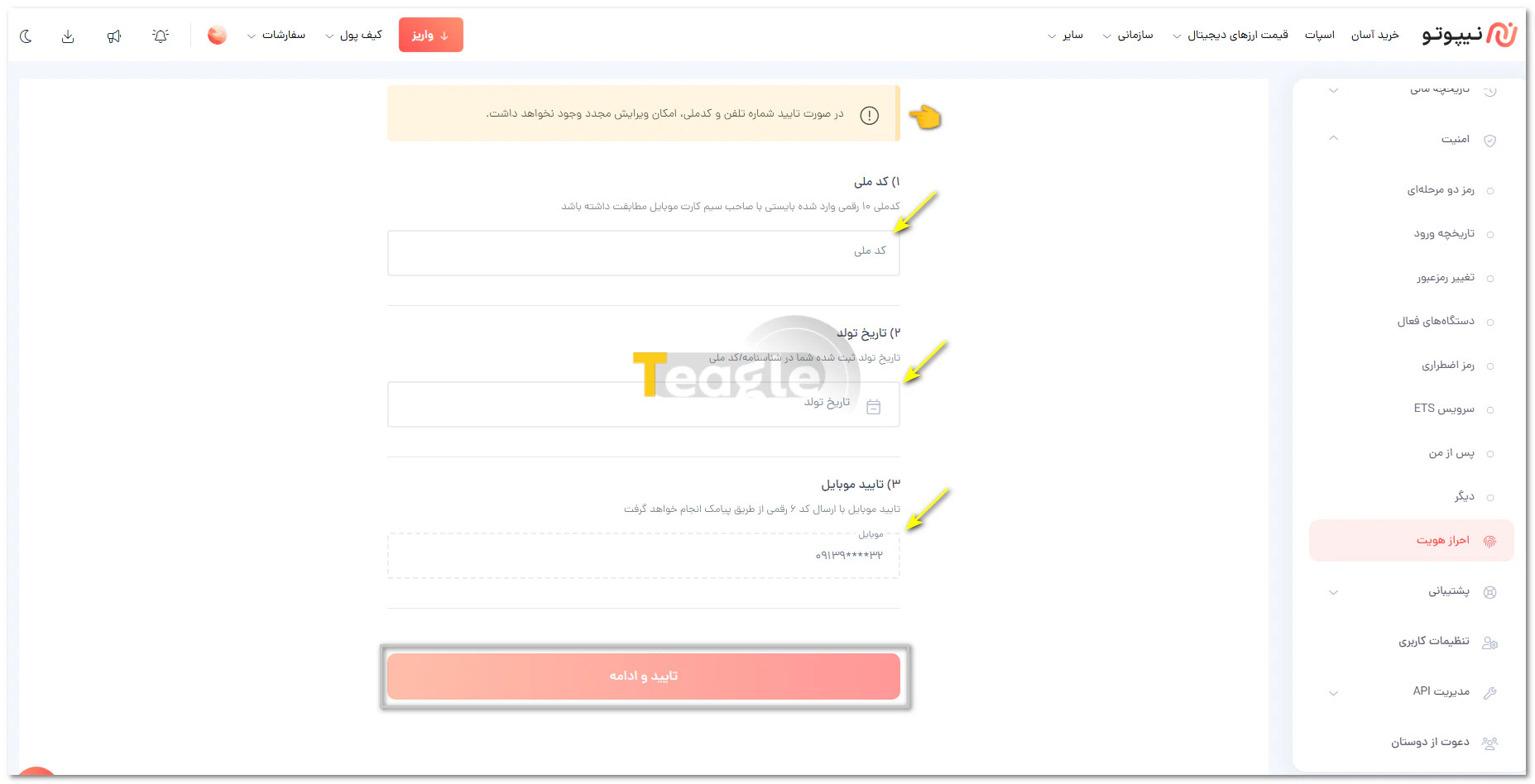
After watching the tutorial video, tick the box next to «I have watched the video and am aware of the points mentioned» and click «Confirm and Continue».
On the new page, enter the requested information, including your 10-digit national ID number, date of birth and a mobile number registered in your own name. The ownership of the number must match the national ID. Importantly, once the phone number and national ID are confirmed, they cannot be edited again.
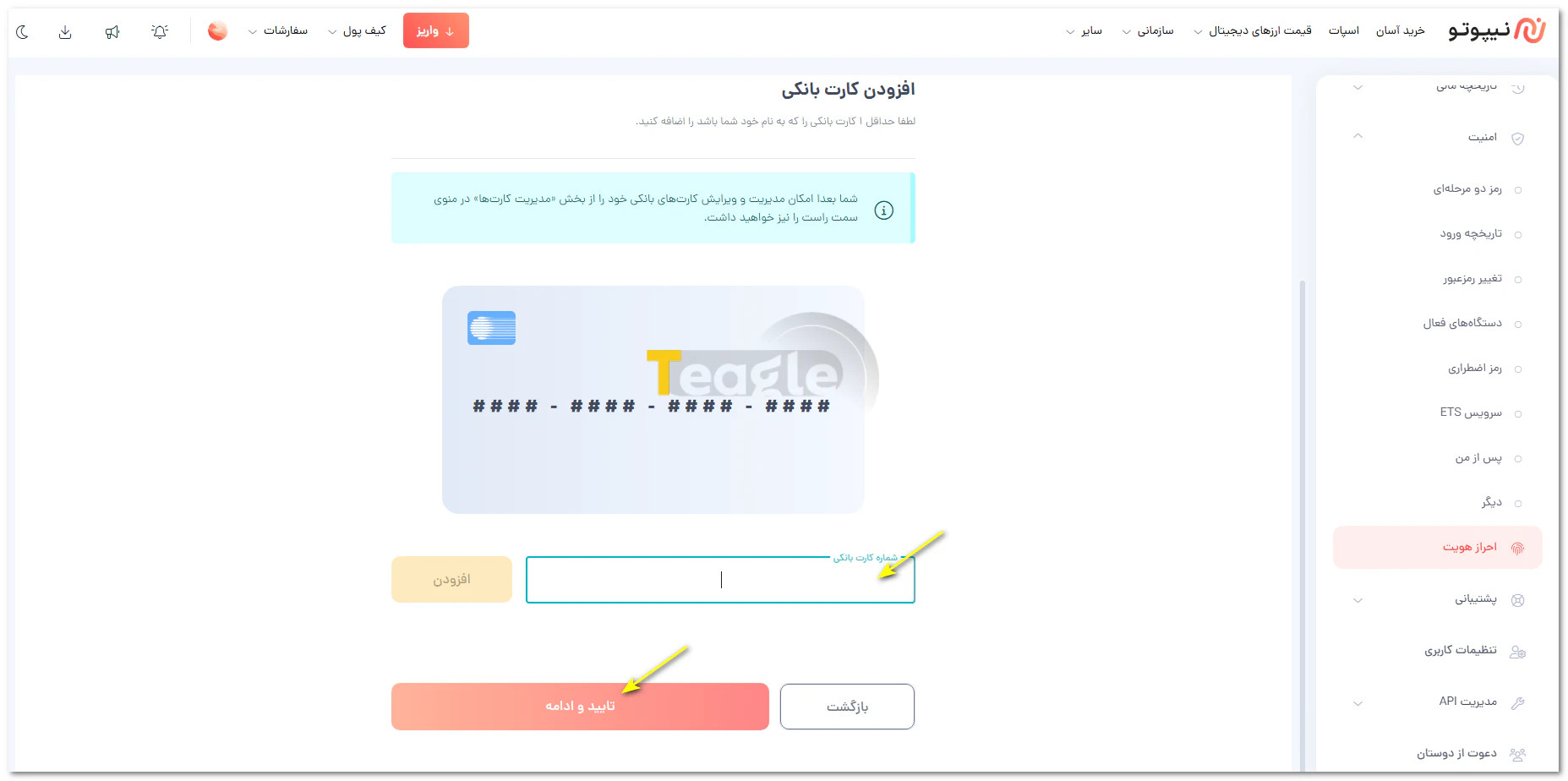
In the next step, you must add at least 1 bank card in your own name. According to the website, you will later be able to manage and edit your bank cards from the «Card Management» section in the right-hand menu.
Now you must upload an image of your original smart national ID card. If you have not yet received your smart national ID card, you can submit an image of your old national ID card or new birth certificate along with the receipt for your new national ID card application. To upload, select the file from your device or drag and drop it into the upload box; each file must be no larger than 3 MB.
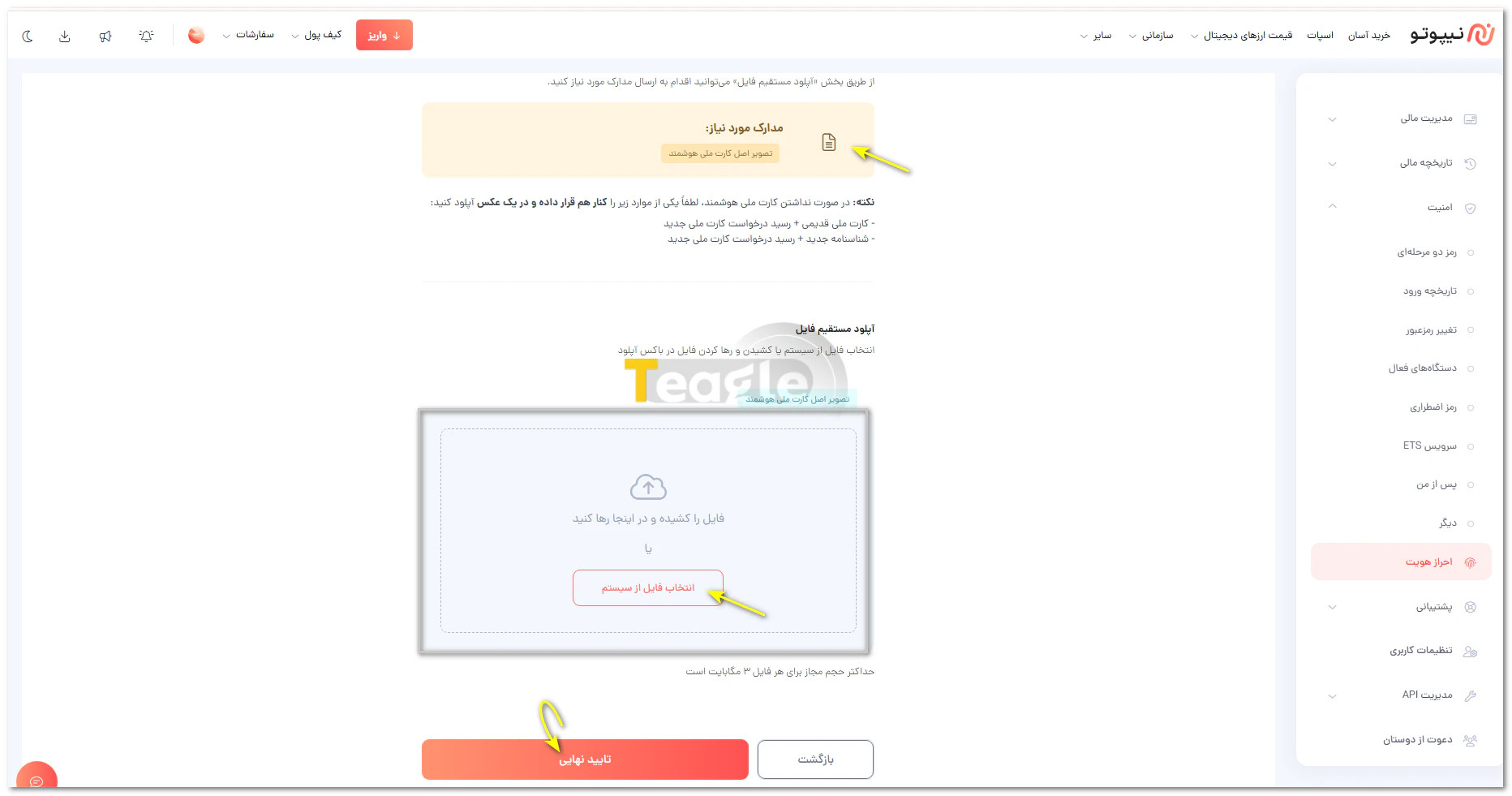
Finally, click final confirmation so that your request and documents can be reviewed.
Documents required for account verification
As mentioned, an image of your smart national ID card is enough to verify your account and upgrade to Level 1. Reaching higher levels requires different documents, which you can see in the table below.
Account level
Stated documents
Level 1
Image of national ID card; identity information, mobile number and bank card are also registered during the process.
Level 2
Selfie photo with documents and selfie video
Level 3
Address verification, signature certificate and verification of capital market activity
The Level 2 guide asks for a photo of the user holding their national ID card and a letter of undertaking, as well as a selfie video. The photo must be no larger than 6 MB in JPG, JPEG or PNG format, and the video no larger than 50 MB in MOV or MP4 format.
How to Deposit and Withdraw Funds on Nipoto Exchange
To buy crypto on Nipoto, you first need to fund your account with Toman or crypto. To move your balance to a bank account or another wallet, you also need to submit a withdrawal request. In this section, we go over the deposit and withdrawal steps on the Nipoto exchange website and explain how to choose your bank details, destination address and transfer network.
How to fund your account and deposit Toman with a bank card
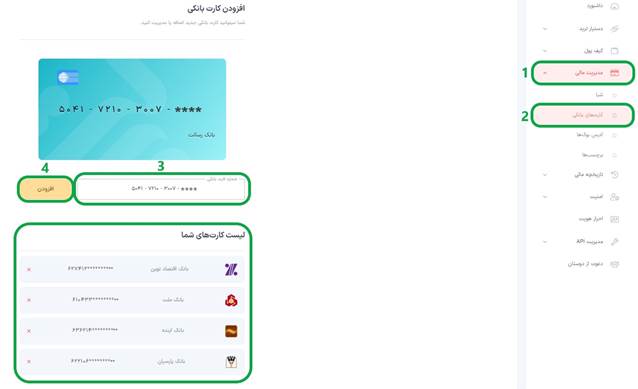
If you want to buy crypto with Toman, you first need to fund your Nipoto account with a bank card in your own name. Before depositing, the card must already be registered in your user account; then enter the amount you want and complete the payment through the bank payment gateway.
- If you haven't registered a card, go to the «Financial Management» section, select «Bank Cards», then add and verify a card number in your own name.
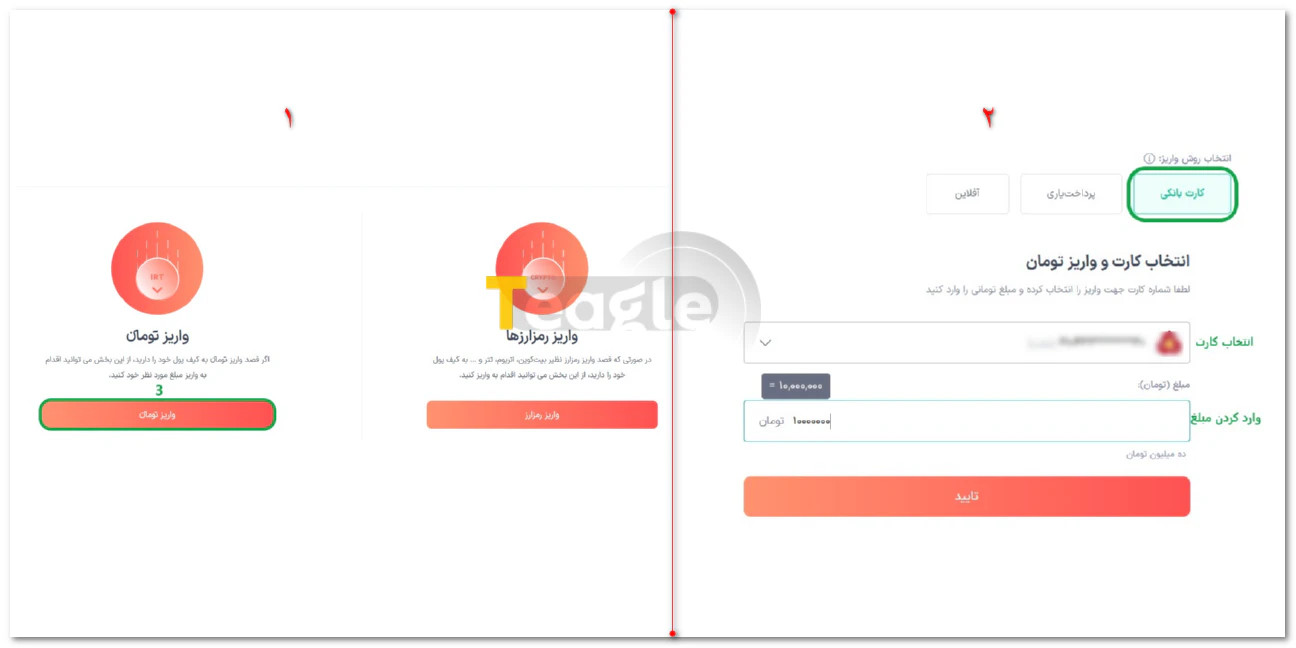
- Follow the path «Wallet ← Deposit ← Toman Deposit».
- Select the «Bank Card» method.
- Choose the card you want from the list of registered cards.
- Enter the amount and tap Confirm to be redirected to the bank payment gateway.
- After paying, check the result in «Deposit History» at the bottom of the page.
-
To withdraw Toman to a bank account:
- Add a Sheba (IBAN) number for an account in your own name to the panel via «Financial Management ← Sheba».
- Via «Wallet ← Withdrawal ← Toman Withdrawal», select the Sheba method and your registered Sheba number.
- Enter the withdrawal amount and check the fee and the final amount you will receive.
- Finally, submit your withdrawal request and enter the SMS code.
-
Note: Nipoto's official announcement mentions a 72-hour withdrawal restriction on crypto bought with certain initial Toman deposits made through the payment gateway. Before transferring assets, check your withdrawable balance.
Crypto deposit and withdrawal tutorial
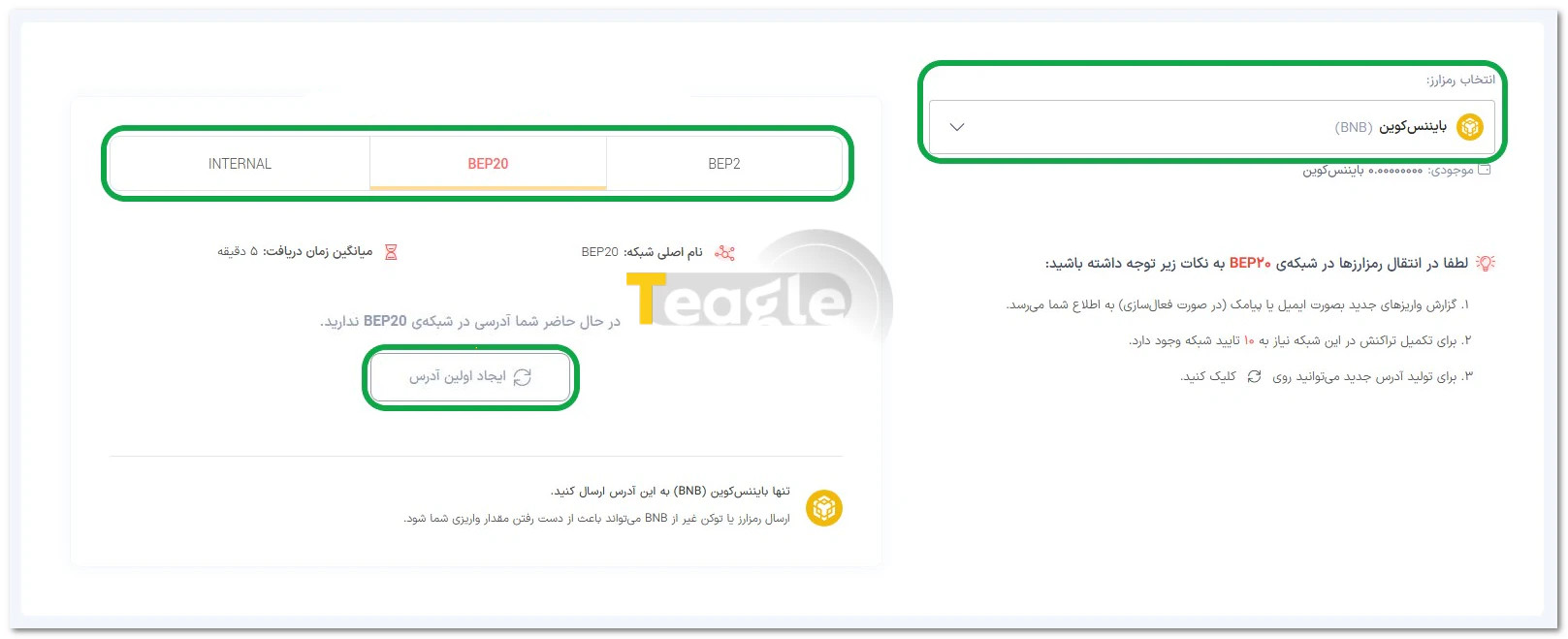
To deposit crypto to Nipoto, go to the «Wallet» section, tap «Deposit» and select «Crypto Deposit». Next, choose the coin and the transfer network; the network must exactly match the source network, because choosing a different network can result in losing your assets. If you don't have an address for that network, tap «Create First Address». Then copy the address or scan its QR code in the source wallet and make the transfer. You can track the deposit status in the list at the bottom of the page.
To withdraw crypto from Nipoto:
- From the right-hand menu, click «Wallet», then under «Withdrawal» select «Crypto Withdrawal».
- On the new page, choose the coin you want.
- To send to a wallet outside Nipoto, select the standard transfer method. Internal transfer is for moving funds between Nipoto accounts.
- Enter the destination address and select the matching network.
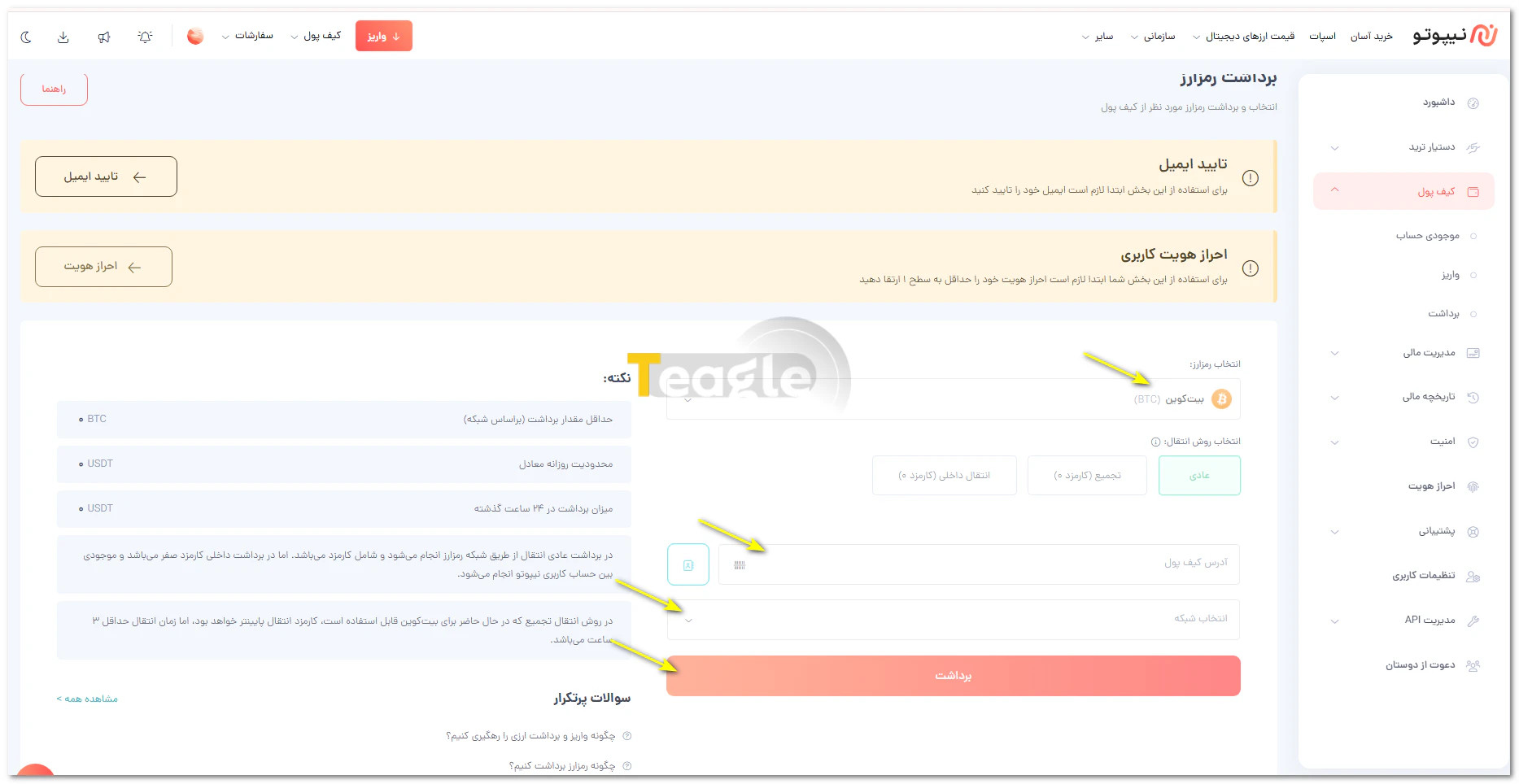
- Set the withdrawal amount and check the fee and the amount the destination will receive.
- Tap Withdraw. According to the guide, you will receive an SMS code and an email confirmation link; before confirming the link, double-check the destination address.
How to Buy, Sell and Start Trading on Nipoto
When buying and selling on Nipoto, the order type determines at what price and under what conditions your trade is executed. A market order is for trading at the prices currently available in the market; with a limit order, you set the price yourself, and execution depends on there being a buyer or seller matching the conditions you set. Understanding this difference, along with choosing the Toman or Tether market, is the first step toward placing orders knowingly.
To buy, you need a balance in the quote currency of the chosen market; for example, buying Bitcoin in the BTC/USDT market requires a Tether balance. To sell, the cryptocurrency in question must be in your wallet.
How to place Market and Limit orders
Before placing an order, decide whether speed of execution is your priority or buying and selling at a specific price. With a market order, your order is executed at the prices available in the market, and its full volume may not be filled at a single price. With a limit order, you set the price yourself, but completing the order depends on the trading conditions being met.
Placing a market order: In this order you do not enter a price of your choice, and the trade is executed at the prices available in the market.
- In your user panel, click «Spot» at the top of the page.
- On the market page, select the «Toman» or «Tether» base currency and then the pair you want; for example, BTC/USDT.
- Select the buy or sell form and set the order type to market.
- Check your available balance.
- Enter the amount of currency or the trade value. You can use the slider to select a percentage of your balance.
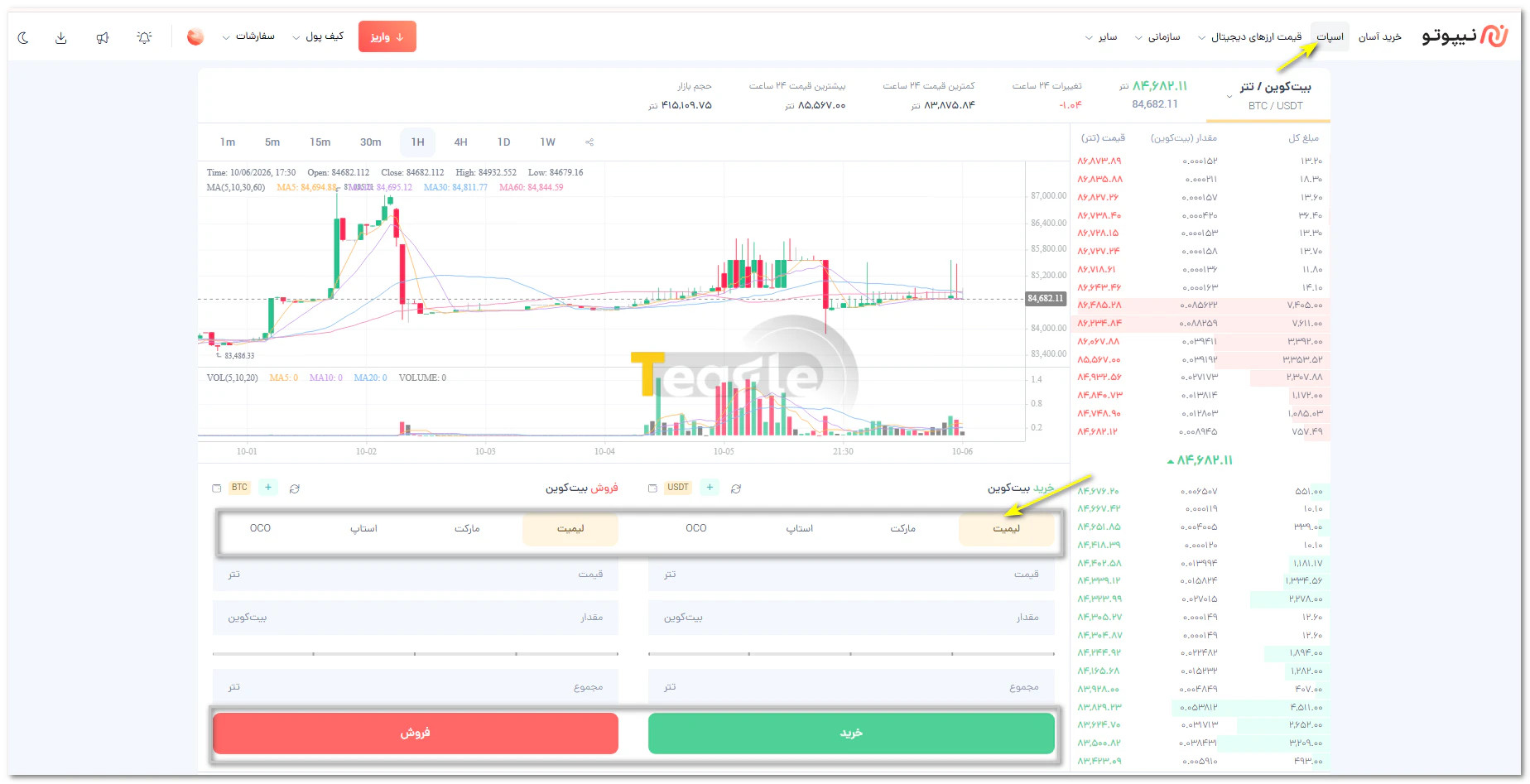
Placing a limit order: With this method, you set the order price and amount yourself.
- Select the pair you want and the buy or sell form.
- Set the order type to limit.
- In the price field, enter the price you want per unit of the cryptocurrency.
- In the amount field, enter the order volume or use the slider.
- Check the calculated amount in the total field and click buy or sell.
- Submit the buy or sell. According to the guide, a market order does not remain in the pending order book.
-
Note: An unexecuted order appears under «Open orders». If the chosen price overlaps with orders on the opposite side, according to Nipoto's guide it can be executed immediately.
To review or cancel the unexecuted part of an order, go to «Open orders»; completed trades are shown in «Trade history».
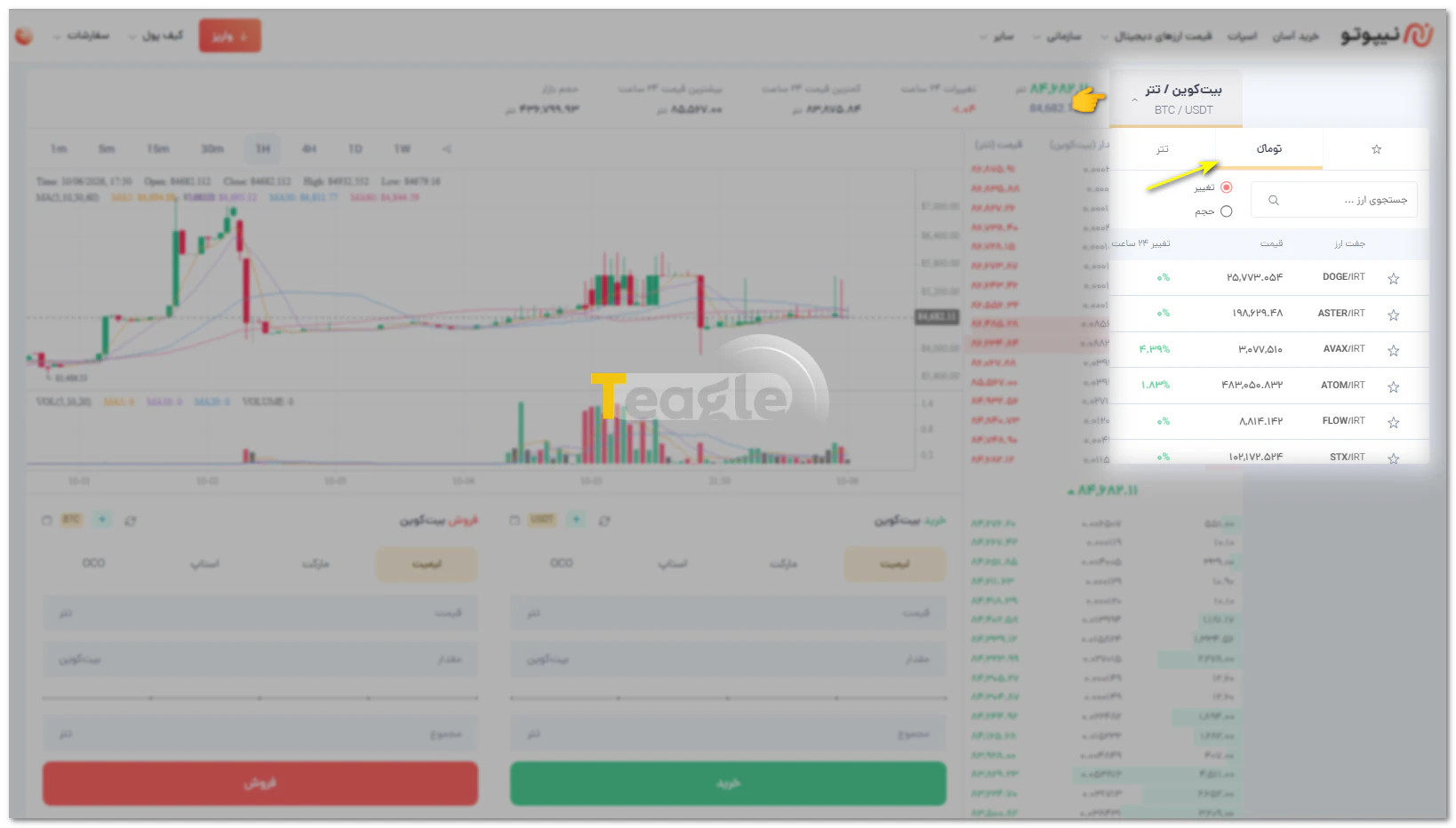
Trading in the Toman and Tether marketsChoosing the Toman or Tether market on Nipoto determines in which unit you see a currency's price and with which asset you pay or receive the trade amount. In the Toman market, purchases are made with your Toman balance and sale proceeds are also in Toman; in the Tether market, the same exchange takes place with Tether (USDT). So you should choose the market according to your account balance and the currency you want to receive after selling. To do this:
- In the list of markets, select the «Toman» or «Tether» base.
- Search for the currency name and open the pair you want.
- Before placing an order, check the market base and your balance.
Nipoto Education and Support Center
The Nipoto exchange help center (https://nipoto.com/helpcenter) provides users with guides on using the dashboard, placing orders and account security. According to the exchange, if you can't find the answer to your question in the guides, live chat is available to you 24/7, every day of the week, on the official «Contact Us» page.
The support channels listed on the Contact Us page are:
- Live chat: 24 hours a day, seven days a week.
- Phone: 91097584-021
- Email: support@nipoto.com
What are the minimum trade amount and fees on Nipoto?
Before placing an order on Nipoto, you should know the minimum allowed amount and the cost of trading. According to the information on the exchange's official website, the minimum trade amount is 300 thousand Toman in the Toman market and 3 Tether in the Tether market. The trading fee for makers (Maker) and takers (Taker) is stated as 0.1 percent in both markets. Withdrawal fees are calculated separately and, for cryptocurrencies, vary depending on the coin and the transfer network. Check the amount for that specific network in the fee table and on the withdrawal form.
|
Item |
Stated amount |
|
Minimum trade in the Toman market |
300 thousand Toman |
|
Minimum trade in the Tether market |
3 Tether |
|
Maker fee in both markets |
0.1 percent |
|
Taker fee in both markets |
0.1 percent |
|
Minimum Toman withdrawal via Sheba |
50 thousand Toman |
|
Toman withdrawal fee from the user account, via Sheba |
10 thousand Toman |
Does using the Nipoto app require identity verification?
To buy and sell and make financial transactions on Nipoto, level one identity verification is required. As mentioned earlier, after confirming your email you can see an overview of your account, but to make financial transactions you must upgrade your account to level one. The verification levels page also lists trading, deposits and withdrawals as available from this level; therefore, using the app does not remove the account verification requirement.
Getting started Using the Nipoto exchange: getting ready for your first trade
After signing up, verifying your identity and funding your account, your most important decision is choosing the market and how to place your order. Choose the Toman or Tether market based on your balance and trading goal, and before buying or selling, consider the difference between how market and limit orders are executed. When withdrawing, check the final amount after fees, and for crypto transfers, make sure the source and destination networks match and the address is correct. These simple checks help you confirm each request knowing its outcome. To clear up any questions about the steps or account conditions, the Nipoto exchange help center and official support are your go-to resources.
Frequently Asked Questions
Articles related to the broker
User reviews

Newest
