
Eplanet Broker Registration and Usage Tutorial


Signing up for and using the Eplanet broker may seem a little difficult at first glance for some beginner users. That is why getting familiar with the main steps of registering and working with this broker is so important. In this article, we aim to go through a simple, step-by-step tutorial on registering and working with Eplanet Brokers. From creating a user account to logging into the panel and getting to know its key sections, we explain every step in order. The goal is for Iranian users to be able to easily follow the process of working with this broker.
Logging in to the Eplanet Broker Website
در ابتدای امر باید اشاره کنیم که دامنه اصلی بروکر Eplanet با آدرس eplanetbrokers.com در دسترس است. بعد از ورود، زبان سایت را روی فارسی قرار دهید یا مستقیم روی https://eplanetbrokers.com/fa کلیک کنید.

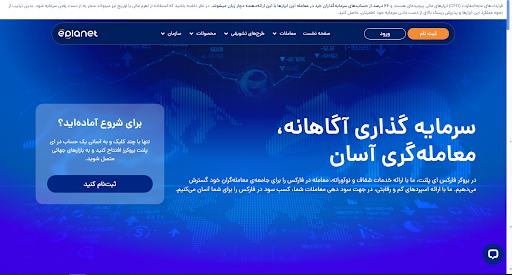
دانلود و ورود به اپلیکیشن بروکر ایپلنت Eplanet
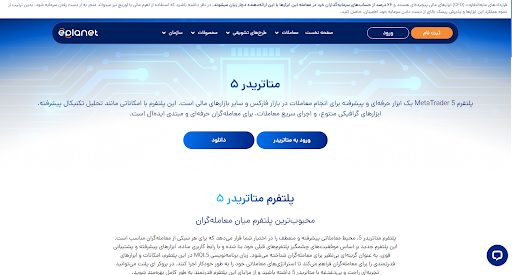
بروکر ایپلنت به طور مستقل، اپلیکیشن اختصاصی ندارد، بلکه از طریق Meta Trader 5 و cTrader، پلتفرمهای معاملاتی خود را ارائه میدهد. برای دانلود و ورود به اپلیکیشن بروکر ایپلنت، مراحل زیر را طی کنید:
1. وارد وبسایت https://eplanetbrokers.com/fa شوید.
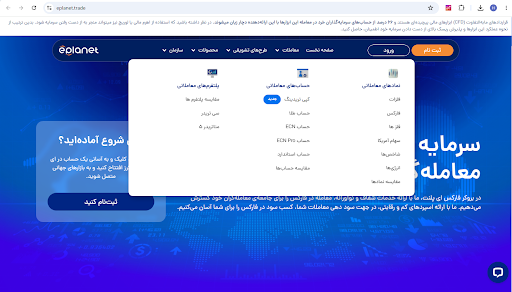
2. از سربرگ بازشده، گزینه «معاملات» را انتخاب کنید.
3. از بخش «پلتفرمهای معاملاتی» هرکدام از پلتفرمهای سیتریدر و متاتریدر5 را میخواهید، انتخاب کنید.
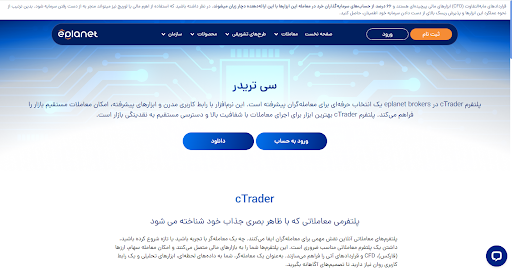
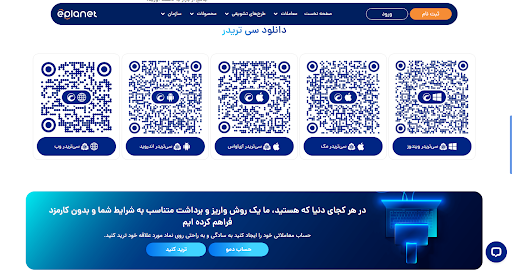
4. اگر پلتفرم cTrader را انتخاب کردید، صفحه اختصاصی این پلتفرم برای شما باز میشود که برای دانلود سیتریدر، میتوانید با اسکن QR Code یا دکمه دانلود مستقیم، هریک از نسخههای زیر را متناسب با دستگاه خود دانلود کنید:
- نسخه ویندوز
- نسخه مک
- نسخه آیاواس
- اندروید
- وب
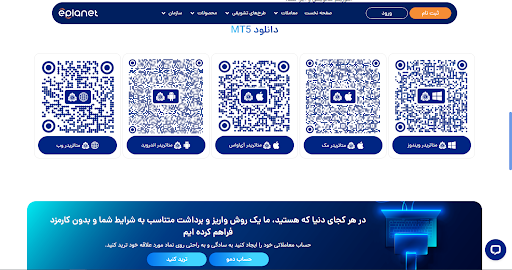
5. اگر پلتفرم Meta Trader 5 انتخاب شماست، در صفحه اختصاصی این پلتفرم در وبسایت ایپلنت، میتوانید با اسکن QR Code یا دکمه دانلود مستقیم، هریک از نسخههای زیر را برای دستگاه خود دانلود کنید:
- نسخه ویندوز
- نسخه مک
- نسخه آیاواس
- اندروید
- وب
How to Register and Verify Your Identity at Eplanet Broker
To register and verify your identity with ePlanet, you can easily start from the homepage of this broker's website and follow the steps below:
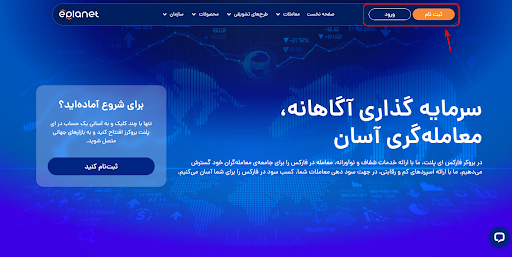
1. On the homepage of the ePlanet broker's website, select the «Sign Up» option.
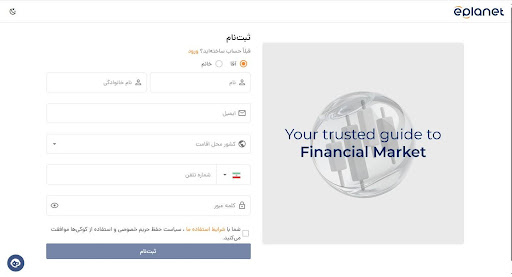
2. You will then be taken to this broker's registration page, where you must enter your basic information, including gender, identity details, email, country of residence, phone number and password.
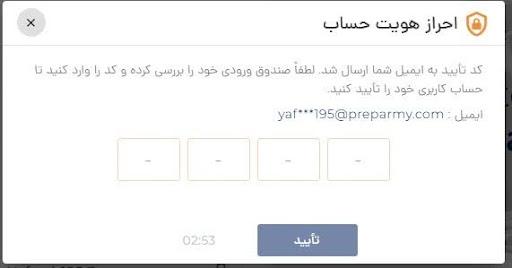
3. After entering your details, a verification code is sent to your email, which you must enter in the window that opens and then click «Confirm».
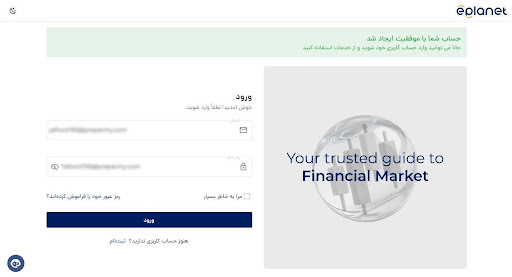
4. After the account is created, you will be taken to the ePlanet Brokers «Login» page, where you need to re-enter the email and password you entered earlier and click «Login».
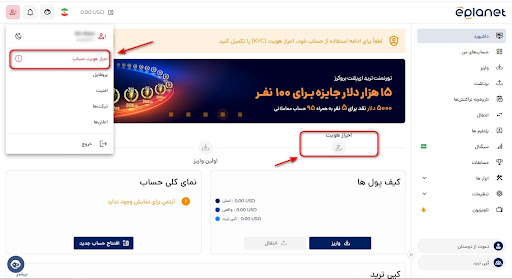
5. At this stage you enter your user panel dashboard and see the page below.
6. You can go to the identity verification page from either of the two options available on your dashboard.
7. On the page that opens, you will see the following text from ePlanet:
«You are about to send sensitive information to ePlanet Brokers LTD. If you received this link from a suspicious source, please close this page and notify us immediately.»
There is also a «How to verify» option at the top of this page, which takes you to the ePlanet broker's identity verification tutorial page.
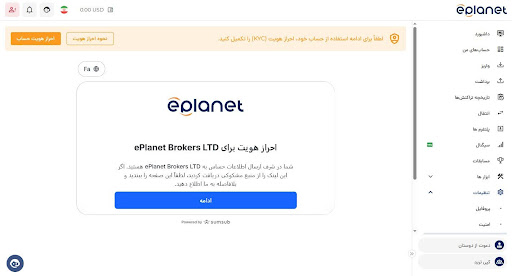
8. Click «Continue» to move on to the next step.
9. At this stage you will be asked for an identity document and personal information, which you must provide to complete the process.
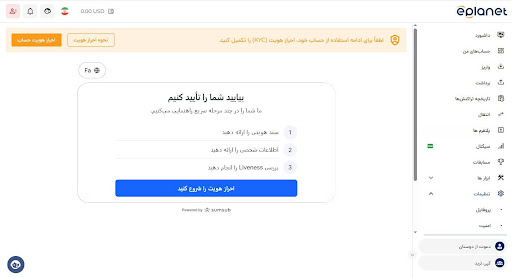
According to this broker, the national ID card, passport and new birth certificate are accepted as identity documents from Iranians, and the minimum age for verification is 18 full years. Note that Iranians living in Turkey cannot verify their identity with Turkish identification documents. Remember to turn off your VPN before starting the verification process.
Opening a Trading Account with Eplanet Broker
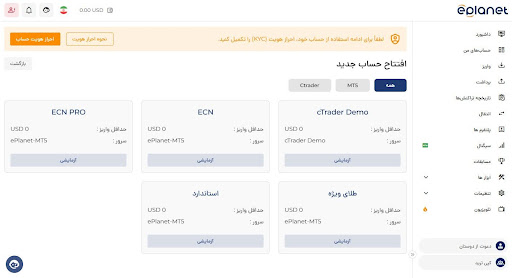
Before getting into the topic, we should point out that ePlanet's accounts differ between the MetaTrader 5 and cTrader trading platforms.
ePlanet broker's accounts on Meta Trader 5 are:
- ECN Pro
- Gold Special
- Standard
- ECN
ePlanet broker's accounts on cTrader are:
- ECN Pro
- ECN
- Standard
To open an account, follow these steps in your dashboard:
1. Go to the account opening section via the «My Accounts», «Open Account» or «Open New Account» option.
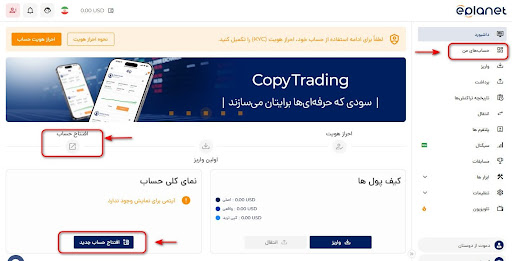
2. On the page that opens, you can select the account you want and open it. Note that to access Real accounts, you must have completed identity verification.
Installing and Connecting the Trading Platform for Your Eplanet Account
همانطور که پیشتر گفته شد، برای نصب هر یک از پلتفرمهای متاتریدر5 و سیتریدر، به صفحه مربوطه رفته و نسخه متناسب با دستگاه خود را نصب کنید. مقاله آموزش اتصال بروکر به متا تریدر به شما کمک میکند فرایند نصب و اتصال را با سهولت بیشتری طی کنید.
برای اتصال به متاتریدر 5 ایپلنت، مراحل زیر را طی کنید:
1. پس از انتخاب حساب خود از بخش «افتتاح حساب» در داشبورد خود، اطلاعات اکانت متاتریدر5 خود را مشاهده میکنید:
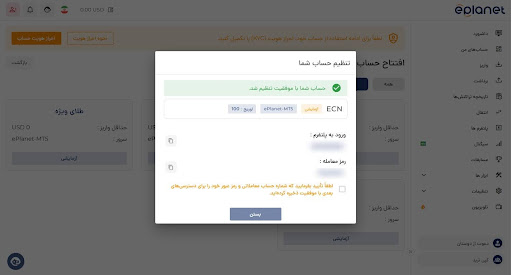
2. متاتریدر را پس از نصب، روی دستگاه خود باز کنید (در ادامه به عنوان نمونه، مراحل نسخه ویندوز متاتریدر را آوردهایم):
3. روی گزینه Login to Trade Account کلیک کنید.
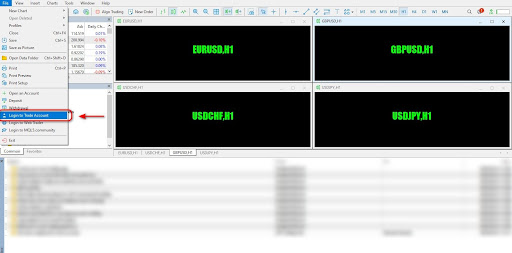
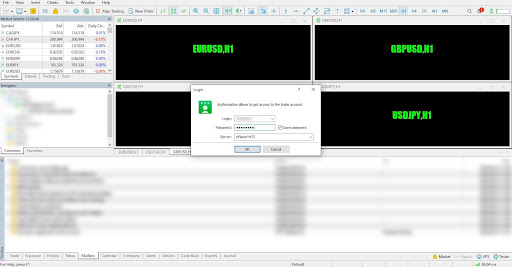
4. اطلاعات حساب اکانت متاتریدر5 خود را در کادر زیر وارد کنید و سپس روی گزینه OK کلیک کنید.
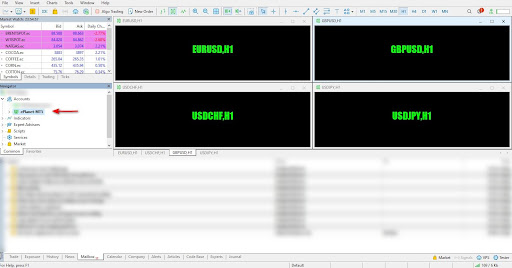
5. حساب شما در گوشه چپ این پلتفرم نمایش داده میشود.
برای اتصال به سیتریدر ایپلنت، مراحل زیر را طی کنید:
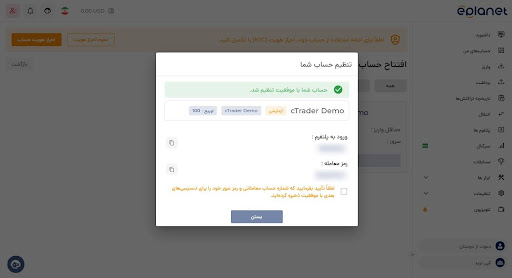
1. پس از انتخاب حساب خود از بخش «افتتاح حساب» در داشبورد، اطلاعات اکانت سیتریدر خود را مشاهده میکنید:
2. سپس پیامی از سمت cTrader به ایمیل شما ارسال میشود که شامل آیدی اکانت سیتریدر و یک دکمه Log in است. اصولا آیدی شما همان نام ایمیل شماست. روی گزینه Log in ذکرشده، کلیک کنید و رمز عبور برای خود بسازید.
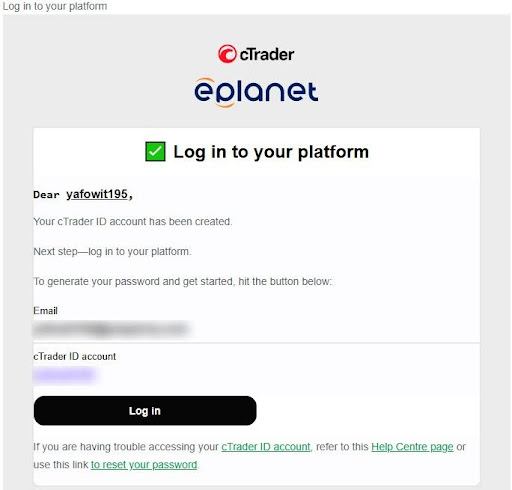
3. پس از ساختن رمز عبور، سیتریدر را پس از نصب، روی دستگاه خود باز کنید (در ادامه به عنوان نمونه، مراحل نسخه ویندوز سیتریدر را آوردهایم).
4. در ابتدای ورود، پنجرهای برای شما باز میشود که باید اطلاعات حساب اکانت سیتریدر خود را که پیشتر توضیح داده شد(ایمیل و رمز عبور)، در پنجره بازشده، وارد کنید و سپس روی گزینه Log in کلیک کنید.
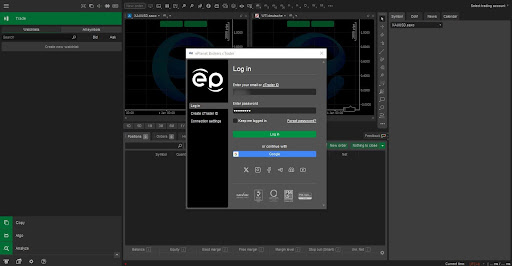
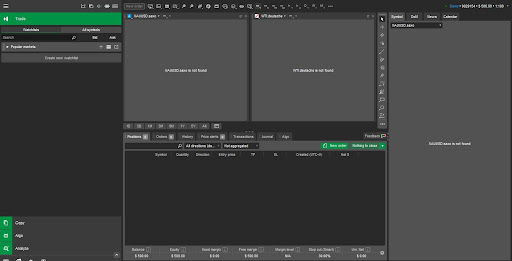
5. وارد صفحه اصلی حساب cTrader خود میشوید.
Depositing to Your Eplanet Account and Starting to Trade
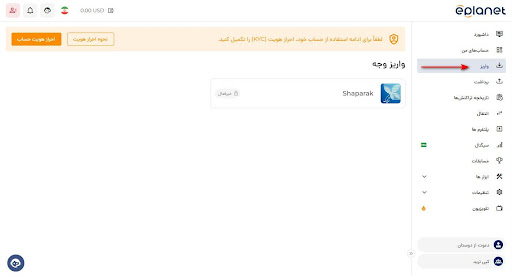
Deposits to an account with the ePlanet broker are available through the broker's user dashboard. To access this section, simply select the «Deposit» option and proceed with your deposit. The only gateway available for deposits at this broker is the Shaparak gateway, which processes payments in Rials.
To start trading, simply log in to either the MetaTrader 5 or cTrader platform and begin your trades.
Tips for Executing Trades with Eplanet Broker
در این بخش نکات مهم مورد نیاز برای اجرای معاملات در بروکر ایپلنت را آوردهایم تا بتوانید به سادگی، معاملات خود را اجرا کنید. لازم به ذکر است که اگر در ابتدای راه هستید، حتما آموزشهای لازم را در این زمینه فراگیرید:
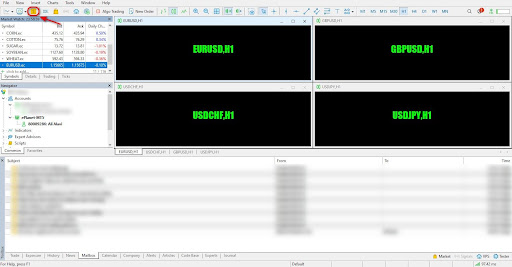
1. برای انتخاب نماد معاملاتی در پلتفرم متاتریدر 5، میتوانید از نوار بالا روی علامت دلار زردرنگ کلیک کنید تا نمادهای معاملاتی بروکر ایپلنت برای شما نمایش داده شود.
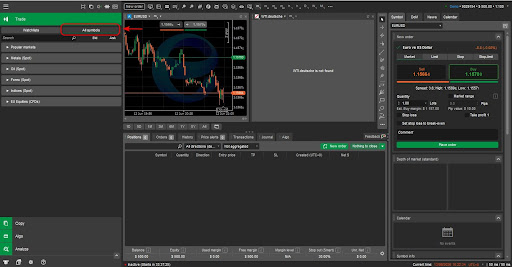
2. نمادهای معاملاتی در پلتفرم cTrader از سمت چپ این پلتفرم با انتخاب All Symbols در دسترس است.
3. ساعات تماس و ارتباط با مدیرحساب از ساعت 10 صبح الی 19:00 و ساعات ارسال پیام، به صورت 24 ساعته برقرار است.
4. تیکتهای شما از ساعت 10:30 الی 19:00 پاسخ داده میشود که ممکن است کمی زمانبر باشد.
5. ساعات معاملاتی بسته به نماد متفاوت است. فارکس از دوشنبه الی جمعه به صورت 24 ساعته فعال است.
How to Withdraw from Your Eplanet Broker Account
Deposits to an account with the Eplanet broker are available through the broker's user account dashboard. To access this section, simply select the «Deposit» option and proceed with your deposit. The only payment gateway available for deposits with this broker is the Shaparak gateway, which works in Rials.
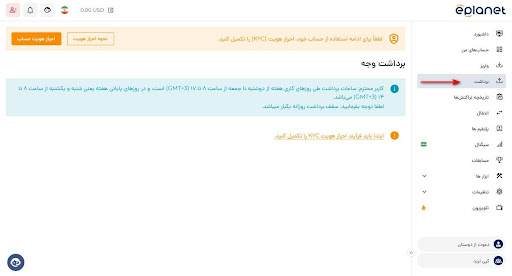
To withdraw from your Eplanet broker account, simply select the «Withdraw» option from your dashboard and proceed with your withdrawal. Note that the daily withdrawal limit is one withdrawal, and withdrawals are processed Monday to Friday from 8 to 17 and on Saturdays and Sundays from 8 to 14. To make a withdrawal, you must first complete identity verification.
Articles related to the broker
User reviews

Newest
