
How to Connect a Broker to MetaTrader 4 and 5

Author
Marzieh Mazaheri
Published
 2026/07/29
Updated
2026/10/25
Reading time
5 دقیقه


Maybe it has happened to you too: you've created your broker account, but when you open MetaTrader you're met with a blank screen or a «No Connection» error. This problem happens to many beginner traders, because connecting an account to MetaTrader doesn't end with installing the program.
Connecting a broker to MetaTrader requires precise information such as the account number, password and trading server. A small mistake in choosing the server or entering the details can cut off your access to the market.
To learn how to connect a broker to MetaTrader 4 and 5, stay with us until the end of this article.
Why Connecting Your Broker to MetaTrader 4 and 5 Correctly Matters
MetaTrader is one of the most popular trading platforms in the forex market, developed by MetaQuotes Software. The platform is not a broker in itself and does not allow you to buy and sell assets directly without connecting to a brokerage.
Connecting your broker to MetaTrader correctly is very important, because all your trading data is transmitted through the broker's server. If this connection isn't established properly, you may run into problems such as the following:
- Live market prices not being displayed
- Account balance not showing
- Getting an error when logging in to the account
One point many traders overlook is that internet speed isn't always the main cause of the problem. Sometimes choosing the wrong broker server or logging in with the «Investor» password instead of the main password leaves the user spending hours looking for an internet problem!
Information Needed to Connect Your Broker Account to MetaTrader
Before you start connecting MetaTrader to your broker, you need to get some key information from your registration email or the broker's user panel. Usually, after opening an account, the broker sends you the login details. This information includes the following:
Trading account number
The trading account number (Account Number) is the ID you use to log in to your account in MetaTrader. This number is usually issued by the broker after you create a demo account or live account. Note that the account number of the broker's user panel is different from the MetaTrader account number.
For example, you may have a user account on the broker's website with your email, but receive a separate account number for forex trading.
Broker data server (Server Address)
The broker server is the most important part of the connection. Even if you enter the account number and password correctly, choosing the wrong server will prevent MetaTrader from connecting to your account. You must select exactly the server you received when creating the account.
Step-by-Step Guide to Connecting a Broker to MetaTrader 4 and 5 on a Computer (Windows and Mac)
After installing MetaTrader, you still can't trade, because the platform has to be connected to your trading account at the broker. Many users get a login error at this very stage because of choosing the wrong server, entering incorrect details or using a different version of MT4 and MT5. The guide below helps you avoid these errors as much as possible:
Getting the account details from the broker
After opening a demo or live account, the broker usually sends you the login details. To connect the account to MetaTrader, you need these three items:
- Account number (Login): The ID used to log in to the trading account.
- Password: The main account password, which allows you to trade.
- Trading server (Server): The server through which MetaTrader connects to the broker's system.
Note that some brokers provide two types of password:
- Main password (Main Password): For logging in and trading.
- Investor password (Investor Password): Only for viewing the account, open trades and order history.
As we mentioned in the previous section, if you log in with the Investor password, the connection is established, but you won't be able to place orders; something that confuses many beginner traders.
Downloading and installing the MetaTrader platform
The first step in connecting MetaTrader is installing the right version of the platform. It's best to get the software from the official MetaQuotes website or the download link your broker has provided.
MetaTrader versions are available for different operating systems:
- Windows
- Mac
- Android
- iOS
After installing the program, launch MetaTrader.
Connecting the account
The connection process in MetaTrader 4 and MetaTrader 5 is almost the same. The main difference is in the look of some menus and the features of the two versions. To connect the account:
- Open MetaTrader.
- In the initial window, click the «File» menu and select «Login to an existing account».
- Enter your account number, password and trading server.
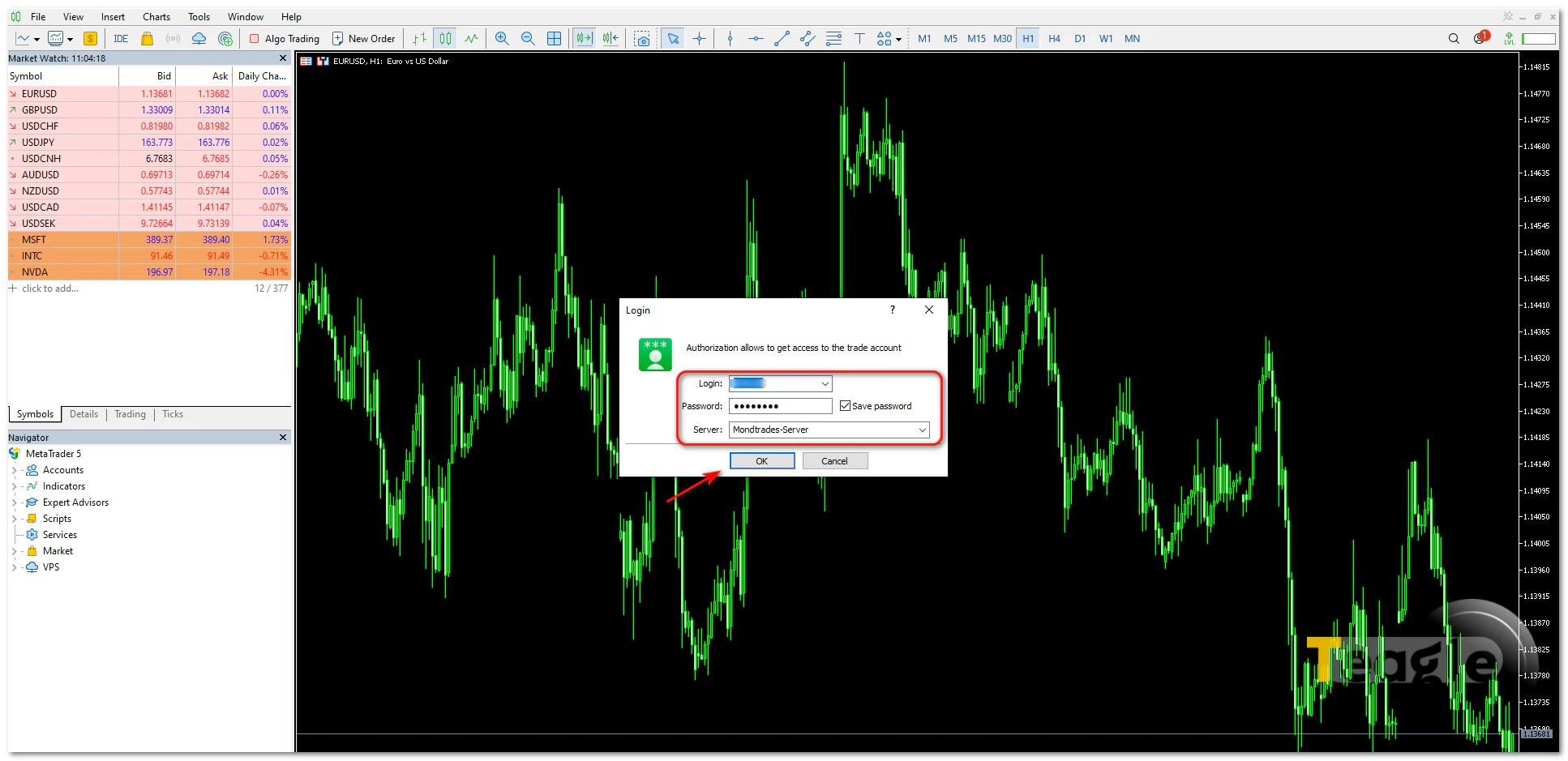
- If you haven't opened an account with the broker yet, in MetaTrader select «Open New Account» from the ««File» menu.
- In the window that opens, search for your broker's name to be directed to the relevant platform.
-
If your broker doesn't appear in the list, you usually have two options:
- Enter the broker's name in the search box and select «Find your broker» .
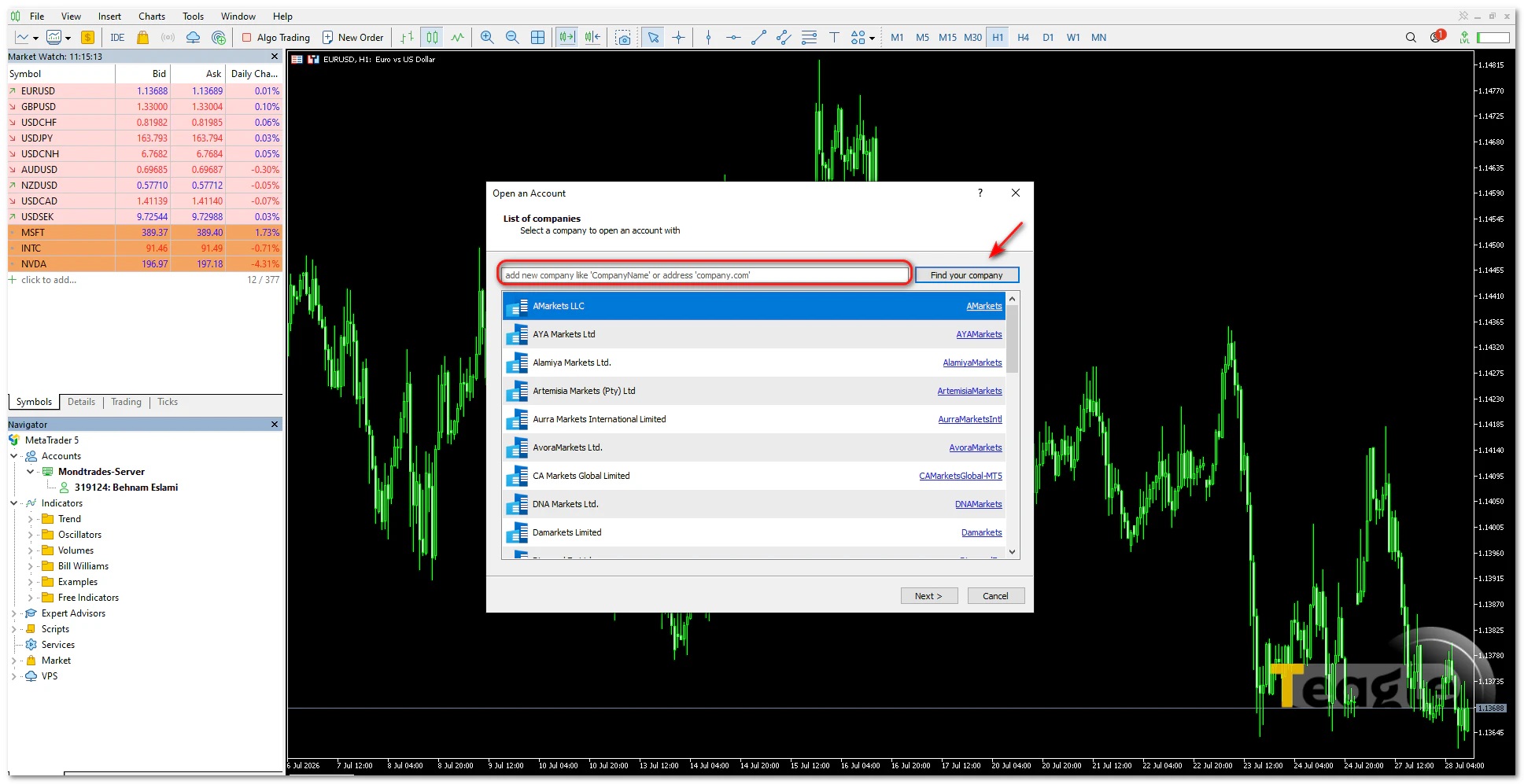
- Enter the server address provided by the broker manually.
-
Note that live and demo accounts usually have separate servers, and choosing the wrong one will prevent you from logging in to the account.
Adding a new account in MetaTrader
If you've already added an account to MetaTrader and want to add another one, you don't need to reinstall the program. Use the following path:
File → Login to Trade Account
Then enter:
- the new account number
- the password
- the server for that account
-
.
This feature is very useful for traders who have several accounts with one broker or with several different brokers. However, be careful when switching between accounts so that you don't place an order on the wrong account.
Connecting a Broker to MetaTrader on Mobile (Android and iPhone)
Connecting a broker account to MetaTrader on mobile isn't much different from the desktop version; only the path to the settings is slightly different. To log in to your trading account, you need to enter details such as the account number (Login), password and broker server in the MetaTrader app.
Before you start, make sure you've installed the MetaTrader 4 or MetaTrader 5 app from a reliable source and have received your account login details from the broker.
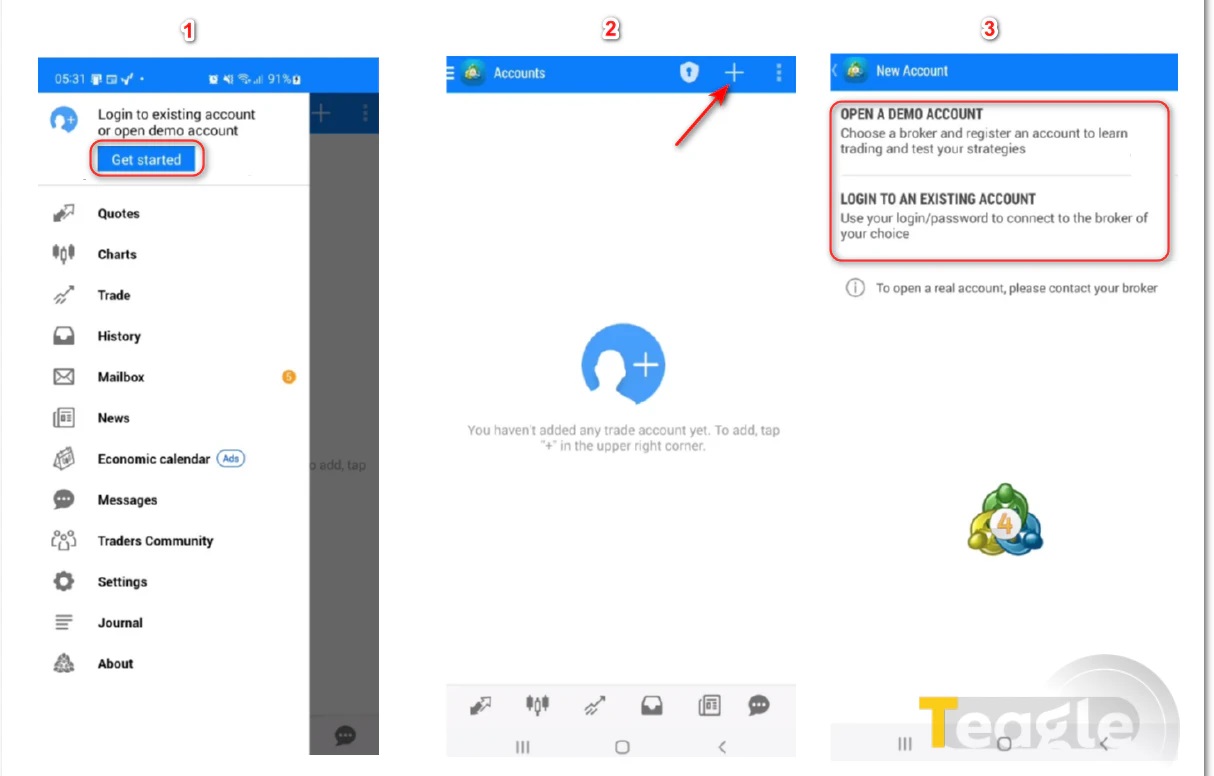
- Open the MetaTrader 4 or MetaTrader 5 app.
- On the app's start screen, select «Get Started» .
- Tap the + icon at the top of the screen. This option is for adding a new account; even if you already have a trading account, you need to log in to it through this same path.
- Select «Login to an Existing Account» .
- In the broker search section, enter your brokerage's name and select the server for your account.
- For live accounts, servers are usually shown with names such as Live or Real .
- For demo accounts, terms such as Demo are usually used.
- In the final step, enter the account number, password and trading server, and tap Sign In.
-
If the details are correct, your account will be added to MetaTrader and you can view your charts, account balance and trades.
How to tell if MetaTrader mobile has connected successfully
After a successful login, your trading account appears in the «Accounts» section. A connection indicator or the account status shown at the top of the screen usually means the connection to the broker's server has been established. If you don't see this status, one of the following is probably causing the problem:
- Either the account number or the password was entered incorrectly.
- The wrong trading server was selected.
- Or your internet connection can't reach the broker's server.
-
Differences in connecting on MetaTrader 4 and MetaTrader 5
In terms of the main steps, connecting a broker to MetaTrader 4 and 5 is not very different. On both platforms, you need to enter your account number (Login), password and the broker's trading server to connect to the account. However, there are differences in the user interface, how you find the broker and how accounts are managed, which can make the login experience slightly different.
In MetaTrader 5 , when adding a new account, a step-by-step process or Wizard is usually shown that first lets you search for the broker, select the server and then connect to an existing account. MT5 also uses a more up-to-date database to list brokers and servers, so in many cases finding the broker's name is easier.
By contrast, in MetaTrader 4 , the login process is simpler, and sometimes the user has to enter the broker's server name manually, especially when the server isn't shown in the default list.
Both platforms let you add multiple trading accounts, but account management in MT5, especially in the mobile version, is designed to be a bit smoother. In the MT5 app, you usually use the Manage Accounts section and the «+» icon to add an account, whereas in MT4 this is usually done through the Settings section and the New Account or Login to an Existing Account option.
Also, before installing MetaTrader, you should check which version your broker supports, because not all brokers offer both MT4 and MT5, and a broker may provide only one of the two versions to its users.
Contents of this article


Related articles


User reviews

Newest
 Upload image